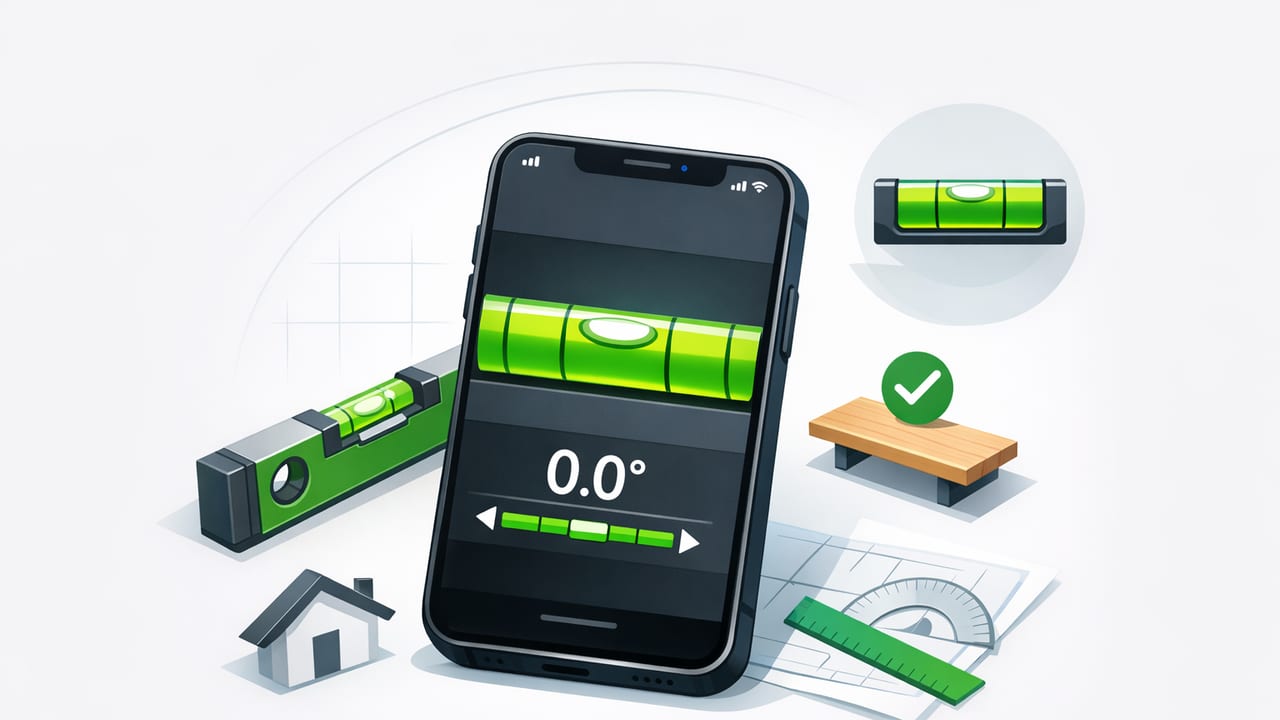
A spirit level app can turn your iPhone into a practical leveling tool for everyday DIY—hanging pictures, installing shelves, aligning appliances, or checking slopes. Modern iPhones include highly sensitive motion sensors that can report tilt in degrees and help you achieve repeatable, straight results without digging through a toolbox.
This guide explains how a spirit level app works, how to get reliable accuracy, where it shines (and where it doesn’t), and step-by-step workflows you can use immediately for home improvement projects.
What a spirit level app actually measures
A traditional spirit level uses a bubble in fluid to show level (0°) and plumb (90°). A spirit level app mimics that behavior using your phone’s accelerometer and gyroscope to measure orientation relative to gravity.
- Level (horizontal): The surface is flat—no tilt left/right or forward/back.
- Plumb (vertical): The surface is straight up/down, like a stud or door jamb.
- Slope: A controlled tilt, often expressed in degrees (°) or percent grade (%).
In practice, “accuracy” is a combination of sensor quality, calibration, how you place the phone, and whether your reference surface is truly flat.
Before you start: calibration matters
The fastest way to get trustworthy readings is to calibrate your spirit level app. Even small offsets can turn into visible errors over a long shelf or tile line.
Quick calibration method (works for most level apps)
- Place your phone on a known flat surface (a kitchen counter, a solid table, or a verified level board).
- Note the reading (for example, +0.3°).
- Rotate the phone 180° in the same spot (top becomes bottom) and note the new reading (for example, -0.1°).
- If your app supports calibration, set the midpoint as zero. If not, treat the offset as your reference and aim for that number consistently.
Pro tip: If the surface might not be perfectly level, use a “flip test” on the same spot. A truly level reference will show equal and opposite readings when you rotate 180°.
How to hold/place your phone for repeatable results
Most measurement errors come from poor contact or inconsistent placement rather than the sensors themselves.
- Use a flat phone edge: Remove thick cases that wobble or compress.
- Maximize contact area: A longer contact line reduces rocking on textured surfaces.
- Keep pressure consistent: Pressing harder on one corner can change the reading.
- Mind camera bumps: If the phone rocks because of the camera module, place a thin shim under the opposite side—or use another edge.
Step-by-step: common DIY tasks with a spirit level app
1) Hanging frames in a straight line
For gallery walls, you’re leveling both the frame and the spacing.
- Mark the intended top line lightly with painter’s tape.
- Place the phone along the tape to confirm it’s level (aim for 0.0°).
- Use the phone on the frame’s top edge to confirm the frame is level before final tightening.
- Re-check after tightening—screws and hooks can shift slightly under load.
2) Installing shelves (short and long)
Shelves exaggerate small errors. A 0.5° tilt across a long span can be obvious.
- Level your first bracket (vertical alignment) by placing the phone against the bracket or a straightedge aligned to it.
- Mark the second bracket position, then lay a straight board across both bracket points.
- Place the phone on the board and adjust until the board reads level; then drill and mount.
Tip: For very long shelves, check level in two places (left and right). A wall can have subtle waves.
3) Leveling appliances (washer, dryer, fridge)
Appliance leveling reduces vibration, noise, and door drift.
- Place the phone on the appliance top (use a thin board if the surface is curved).
- Check left/right tilt, then front/back tilt.
- Adjust feet gradually, rechecking after each change.
4) Checking floor slope or drainage direction
Sometimes you don’t want “perfectly level”—you want a controlled slope (for drainage, ramps, or outdoor surfaces).
- Measure the current tilt in degrees.
- Convert degrees to percent grade if needed (see the formula below).
- Verify in multiple spots to map the surface rather than trusting a single reading.
Degrees vs percent grade (and a quick conversion)
Some projects reference slope as a percent grade (rise/run × 100), while level apps often display degrees.
| Degrees | Approx. Percent Grade | Common Use |
|---|---|---|
| 0.5° | 0.9% | Very slight slope, subtle drainage |
| 1.0° | 1.7% | Gentle slope |
| 2.0° | 3.5% | Noticeable slope |
| 5.0° | 8.7% | Steeper ramp territory |
Here’s the relationship:
percent_grade = tan(degrees * π/180) * 100Where a spirit level app is most useful (and where it isn’t)
Best use cases
- Quick verification: “Is this close to level?” checks during layout.
- Repeatable installs: Frames, towel bars, shelves, TV mounts (as a secondary check).
- Field work: Outdoor tasks where you want an offline tool on hand.
- Tight spaces: Where a long bubble level can’t fit.
Limitations to respect
- Reference surfaces matter: A textured tile or rounded surface can mislead readings.
- Phone geometry: Cases, camera bumps, and curved edges can introduce tilt.
- Not a substitute for code-critical measurement: For structural framing or compliance work, use appropriate professional instruments and local standards.
Accuracy checklist (use this every time)
- Calibrate before important installs.
- Remove or loosen bulky cases that create rocking points.
- Use a straightedge (board, ruler, metal square) to increase contact on uneven materials.
- Take two readings: rotate the phone 180° and confirm they mirror each other.
- Re-check after fastening (tightening can shift parts).
Troubleshooting: common mistakes and fixes
“My reading changes when I move the phone slightly.”
You’re likely on a surface that isn’t uniformly flat, or the phone is rocking. Use a longer straightedge, or move to a different contact point. For shelves, measure on a board that spans the supports.
“It says level, but it doesn’t look level.”
Human perception is heavily influenced by nearby lines (ceilings, grout, trim). Confirm with a second reference line (like a tape line) and test by rotating the phone 180°. If the reading doesn’t mirror, calibrate.
“My wall is plumb in one spot and not in another.”
That can be real. Walls can bow. Take readings along the height and decide whether you’re aligning to the wall, to gravity (true plumb), or to adjacent elements like cabinets.
Choosing a good spirit level app: features that actually help
Not all level apps feel the same. If you’re comparing options, prioritize practical features that reduce error and improve workflow.
- Dual-axis leveling: Shows left/right and forward/back tilt so you don’t fix one axis while worsening the other.
- Calibration controls: Manual calibration or a guided process is a big plus.
- Clear degree readout: Useful for matching a specific slope.
- Offline operation: Helpful in basements, job sites, or outdoors with poor reception.
- No forced subscriptions: For tools you may use occasionally but want available anytime.
FAQ
Are spirit level apps accurate enough for shelves and frames?
Usually yes—if you calibrate, ensure stable contact (no rocking), and verify with a 180° flip test. For longer spans, use a straight board under the phone.
Should I trust a reading like 0.0° exactly?
Treat it as “within the app’s rounding.” For critical alignment, aim for consistency (same reading in both orientations) rather than chasing a perfect display value on a shaky surface.
Can I use a spirit level app for tile layout?
It’s useful for establishing reference lines and checking edges, but tile layout often benefits from additional methods (chalk lines, spacers, laser levels, and checking multiple points across the field).
Wrap-up
A spirit level app is most effective when you treat it like a measurement instrument: calibrate, control the contact surface, and double-check results. Used that way, it can speed up DIY layout, reduce rework, and help you get cleaner visual lines in everything from frames to shelves to appliance installs.
If you prefer an iOS option that bundles multiple offline measurement tools alongside a level, Level Tool is one example to consider.
