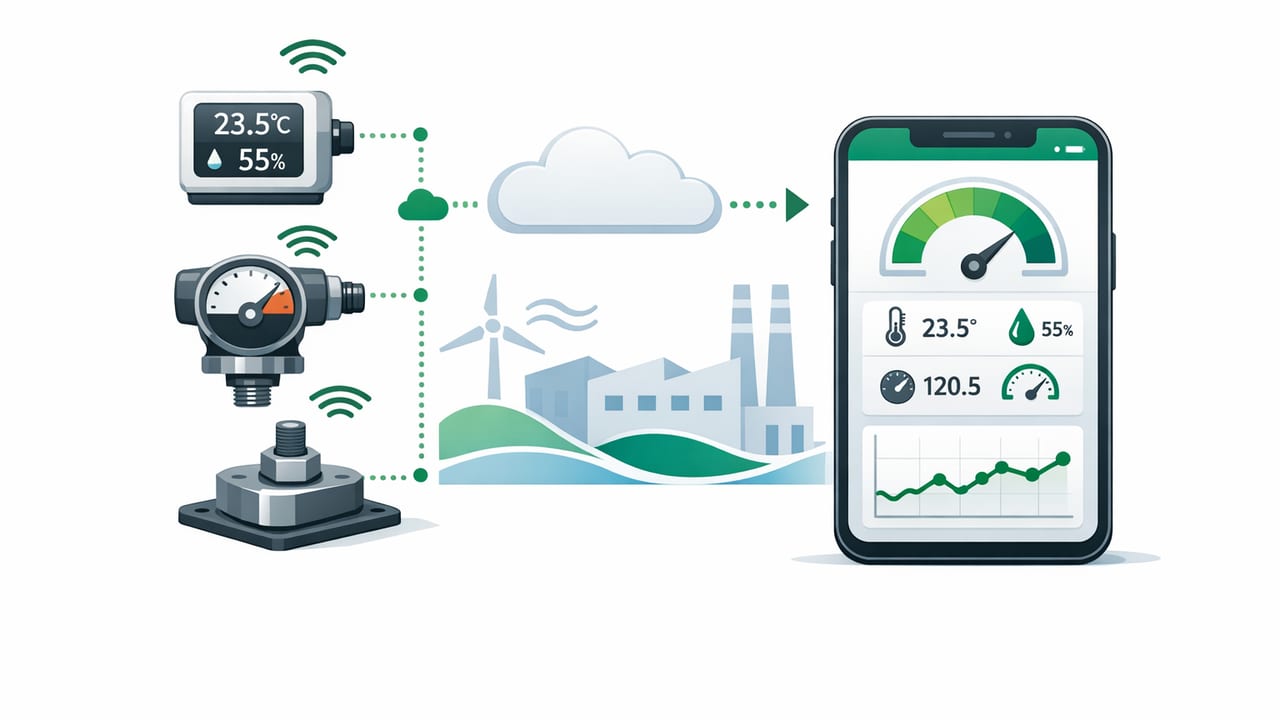
A sensor measurement app turns your iPhone into a pocket toolkit by translating raw sensor data into practical readings—level, angle, distance hints, direction, altitude trends, and even magnetic-field changes. But the real question for DIY and outdoor use isn’t “Can my phone measure?” It’s: When is it accurate enough, and how do I improve reliability?
This guide explains which iPhone sensors measurement apps rely on, what affects accuracy, how to calibrate and validate readings, and how to get dependable results offline—especially for home improvement and navigation scenarios.
What makes a sensor measurement app possible?
Modern iPhones contain multiple tiny instruments (MEMS sensors) that detect motion, orientation, pressure, and magnetism. Apps combine these streams using algorithms (often called sensor fusion) to output stable, human-friendly measurements like degrees, bubble-level positions, or compass bearings.
Rule of thumb: Your phone can measure orientation extremely well, measure pressure trends very well, and measure magnetic anomalies sometimes—but it cannot magically “see” through walls or replace certified instruments for regulated work.
iPhone sensors and what they measure
Different tools inside a sensor measurement app map to specific hardware sensors. Here’s the practical breakdown.
| Tool / Reading | Primary iPhone Sensors | What it’s good for | Common limitations |
|---|---|---|---|
| Bubble level / digital level | Accelerometer + gyroscope | Leveling shelves, checking plumb, setting slopes | Case thickness, uneven surfaces, calibration drift |
| Angle / inclinometer | Gyroscope + accelerometer (fusion) | Setting miter saw angles, roof pitch estimates, ramps | Needs stable contact; vibration adds noise |
| Compass / heading | Magnetometer + gyroscope | Finding direction, aligning maps, basic navigation | Indoor interference from metal/electronics |
| Barometer / altitude trend | Barometric pressure sensor | Weather trend clues, elevation change tracking | Weather changes mimic altitude; needs reference to be “absolute” |
| “Metal detector” style readings | Magnetometer | Finding strong magnetic changes (stud fasteners, large metal) | Cannot precisely locate small items; false positives near electronics |
| Ruler-like measuring | Camera (AR) + motion sensors | Quick object dimensions, rough room estimates | Depends on lighting, texture, distance, AR tracking quality |
Accuracy basics: what “good” looks like for DIY vs. pro work
Accuracy expectations should match the task. For many DIY jobs, you don’t need laboratory-grade precision—you need repeatable results and a clear method.
Where iPhone measurement is usually strong
- Level and tilt: Great for hanging frames, leveling appliances, aligning brackets, setting consistent slope.
- Direction outdoors: Usable compass headings when away from interference, especially with proper calibration.
- Pressure trends: Good for tracking whether pressure is rising/falling; useful for outdoor planning and storm clues.
Where you should be cautious
- Indoor compass readings: Metal studs, wiring, speakers, and appliances can distort the magnetometer.
- Metal detection claims: Magnetometers detect field changes, not “metal” in general; stainless steel, aluminum, and depth matter.
- AR measuring: Great for quick estimates; not the best choice for cut lists or cabinetry tolerances.
Calibration: the #1 way to improve trust
Even the best sensor measurement app depends on calibration—especially for leveling and compass tools. Calibration isn’t complicated, but it must be done intentionally.
How to calibrate a level (simple method)
- Choose a reliable reference: A known-flat surface (stone countertop, thick glass, a verified level, or a sturdy workbench).
- Record the reading: Place your phone down gently and note the angle/level reading.
- Rotate 180° on the same spot: Turn the phone around without changing location.
- Compare results: If the readings are equal and opposite (e.g., +0.3° vs -0.3°), you’re close. If not, use the app’s calibration feature if available.
- Repeat once: Consistency matters more than perfection for everyday DIY.
How to calibrate a compass (and when it won’t help)
- Move away from interference: Step away from cars, large metal objects, speakers, power tools, and magnetic cases.
- Follow on-screen calibration: Many apps use a figure-eight motion to help the magnetometer correct bias.
- Know the limit: If you’re inside a building with lots of steel, calibration can’t fully “fix” distorted fields.
Practical reliability checks you can do in minutes
When a measurement matters, verify it with a quick sanity check. These checks help you spot drift, bad surfaces, or interference before you commit to a cut or install.
Leveling checks
- The flip test: Place phone, read angle, flip 180° in the same position. The magnitude should match closely.
- Cross-check axis: Use both portrait and landscape orientations if your app supports dual-axis leveling.
- Use shims as proof: Add a thin shim under one edge and confirm the reading changes predictably.
Compass checks
- Compare to a known direction: Use a map, sun position (approximate), or a physical compass outdoors.
- Check for “sticky” headings: If the heading lags or jumps indoors, you’re likely near interference.
Barometer checks
- Look for trends, not absolutes: A steady rise/fall is often more meaningful than a single number.
- Verify with local station data when possible: If you later regain signal, compare to a nearby weather station to estimate offset.
Offline matters: why a sensor measurement app can work without signal
Many measurement readings come directly from on-device sensors, so no internet is required to capture them. Offline capability is valuable when:
- You’re in a garage, basement, or jobsite with poor reception.
- You’re hiking or navigating where signal is unreliable.
- You want faster tool access and fewer distractions.
- You prefer privacy (sensor readings don’t need to leave the device).
Note: Some features (like map tiles, geocoding, or weather station comparisons) may still require connectivity. But the core sensor-driven measurements—level, inclinometer, compass sensor data, and pressure readings—can be fully offline.
Noise and smoothing: why readings “wobble” (and how apps stabilize them)
Sensors produce noisy data. Your hand tremor, tiny vibrations from walking, and the phone’s own micro-movements can cause the display to wobble. Apps typically apply smoothing filters and combine sensors to stabilize output.
Here’s a simplified example of exponential smoothing (often used to stabilize motion values). This isn’t production-grade sensor fusion, but it shows the concept clearly.
// Pseudocode: smooth a noisy angle reading
// alpha closer to 1.0 = more responsive; closer to 0.0 = smoother
var smoothed = 0.0
let alpha = 0.2

func update(newAngle: Double) {
    smoothed = alpha * newAngle + (1.0 - alpha) * smoothed
}
In real iOS apps, developers often rely on Core Motion for fused device attitude (which already blends accelerometer + gyroscope) and then apply additional stabilization for UI readability.
Common pitfalls (and quick fixes)
1) A thick phone case changes contact geometry
For leveling, your phone’s physical contact points matter. A case with an uneven lip can tilt the phone slightly.
- Fix: Remove the case for precision leveling, or use a flat-backed case.
2) You’re measuring on a surface that isn’t truly flat
Many “flat” surfaces (wood, drywall, old countertops) have subtle warp or texture.
- Fix: Measure in multiple spots; use a known straightedge if needed.
3) Magnetic interference ruins compass and metal readings
Speakers, MagSafe accessories, power tools, and even rebar in concrete can distort readings.
- Fix: Step back, recalibrate, and avoid measuring near active electronics.
4) Temperature and time can introduce drift
Gyroscopes can drift slowly over time; rapid temperature changes can also affect sensors.
- Fix: Recalibrate before critical tasks and after moving between environments.
DIY scenarios where sensor measurements shine
To make this concrete, here are practical ways to use a sensor measurement app effectively without over-trusting it.
Hanging shelves with consistent slope (intentional or not)
- Use a level tool to verify the bracket line is level before drilling.
- If you want a slight slope (e.g., drainage), set a target angle like 1–2° and keep it consistent across supports.
Checking if a floor is “out” before installing furniture
- Measure multiple points across the floor, not just one spot.
- Use readings to decide where to place adjustable feet or shims.
Outdoor navigation backup
- Use the compass to maintain a bearing when trails are unclear.
- Use pressure trends to anticipate weather shifts (falling pressure can indicate worsening conditions).
Choosing a sensor measurement app: what to look for
If you’re comparing options, prioritize features that improve trust and usability—not flashy claims.
- Calibration controls: Especially for level and compass.
- Dual-axis leveling: Helps detect twist and uneven mounting.
- Clear units and readable UI: Degrees, slope, inches/cm where appropriate.
- Offline-first design: Fast access on jobsites and better privacy.
- No forced subscriptions for basic tools: Practical for occasional DIY use.
FAQ: quick answers about iPhone sensor measurements
Can an iPhone replace a professional level?
For many home tasks, it can be accurate enough if calibrated and used correctly. For regulated or high-stakes work (structural, safety-critical installs), use certified tools.
Why does my compass point the wrong way indoors?
Indoor environments often contain steel beams, wiring, appliances, and electronics that distort Earth’s magnetic field. That distortion can overpower calibration.
Do offline measurement apps still work in Airplane Mode?
Yes for sensor-based readings (level, inclinometer, compass sensor output, barometer). Anything that depends on online maps or external reference data may not.
Bottom line: treat sensors like tools, not magic
A sensor measurement app can be a reliable helper when you understand what it measures, what can throw it off, and how to validate results. Calibrate regularly, avoid magnetic interference, and use quick cross-checks before committing to permanent changes in a project.
If you’re looking for an offline, multi-tool approach on iOS that combines several of these sensor-based measurements in one place, you can explore Level Tool and compare it against the checklist above.
