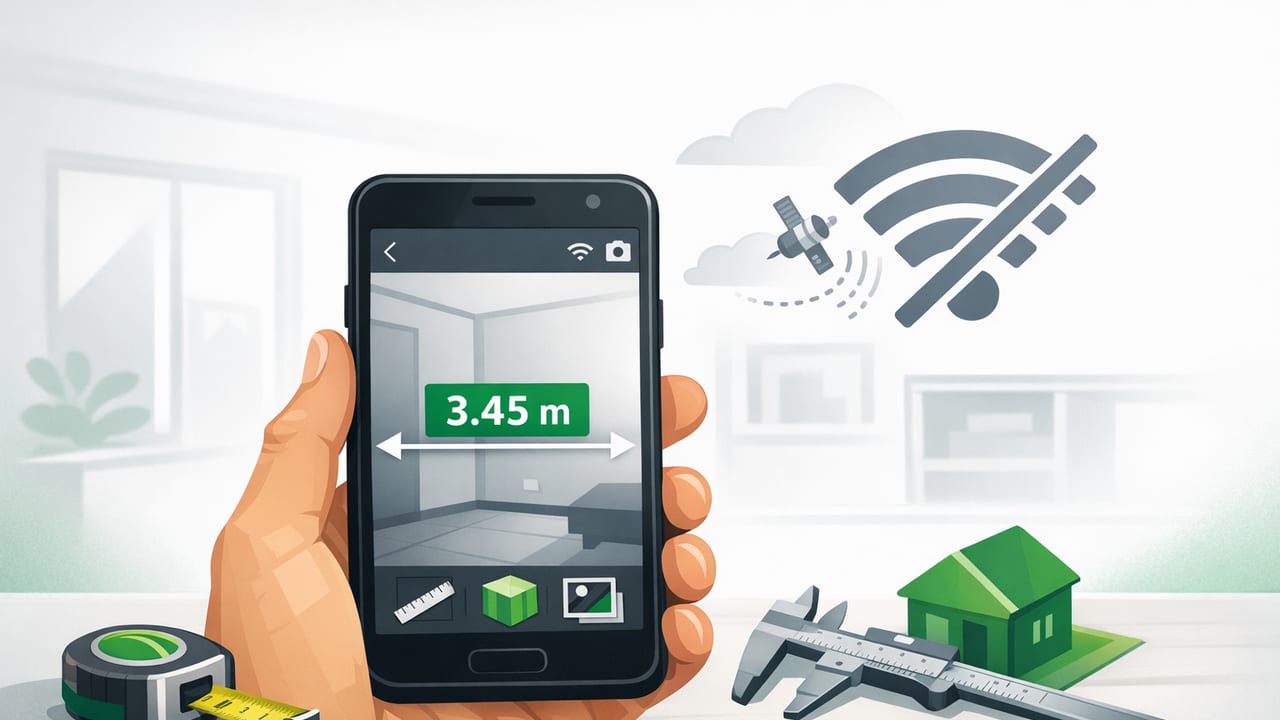
When you’re mid-project—hanging a door, aligning a shelf, checking a slope, or orienting yourself on a trail—the last thing you want is an app that needs a login, a data connection, or a subscription pop-up. A measurement app offline can turn your iPhone into a dependable pocket toolkit using the sensors already built into the device (accelerometer, gyroscope, magnetometer, barometer, camera, and more).
This guide explains what offline measurement apps can realistically do, how to use them effectively for DIY and navigation, and how to improve accuracy so your results hold up in the real world.
Why “offline” matters for measurement tools
Offline functionality isn’t just about convenience—it affects reliability and privacy.
- Reliability on job sites: Basements, rural areas, and metal-clad buildings can have poor reception. Offline tools keep working.
- Faster workflow: No account creation, no ads loading, no waiting for a network.
- Better privacy: A measurement app offline can run without sending sensor data, location, or usage analytics to third parties (depending on the app).
- Emergency readiness: When Wi‑Fi and cell networks are overloaded or down, offline tools still support basic checks and navigation.
What your iPhone can measure (and what it can’t)
Modern iPhones contain high-quality sensors, but accuracy depends on calibration, environment, and expectations. Think of offline measurement apps as practical decision tools rather than lab instruments.
Rule of thumb: Use phone measurements to confirm alignment, trend, direction, and relative change—and verify critical dimensions with dedicated tools when tolerances are tight.
Great use cases
- Level/plumb checks for shelves, frames, appliances, RV leveling, and fence posts
- Angle/slope estimates for ramps, drainage, landscaping, and roof pitch planning (from safe positions)
- Rough short-length measuring with on-screen rulers (best for small items)
- Directional bearings and orientation checks for hiking, paddling, and fieldwork
- Pressure and weather trend awareness via barometer readings
Where phones struggle
- Absolute precision over long distances: A phone cannot replace a tape measure for room layouts.
- Magnetic interference: Compasses can drift near cars, steel studs, rebar, and electronics.
- Edge cases: Uneven surfaces, thick phone cases, and curved materials can skew leveling.
Offline measurement toolkit: common tools and best uses
Many iOS apps combine multiple measurement utilities into one interface. Here’s how the most useful tools map to real tasks.
| Tool | Measures | Best for | Quick accuracy tip |
|---|---|---|---|
| Bubble level / dual-axis level | Level and plumb (tilt) | Shelves, appliances, posts, frames | Use a flat reference (countertop) to verify zero |
| Angle finder / inclinometer | Angle in degrees, slope % | Ramps, drainage checks, miter setups | Measure twice: rotate phone 180° to confirm consistency |
| Ruler (on-screen) | Short distances | Screws, fittings, small parts | Confirm display scaling (some apps ask your model) |
| Compass | Heading/bearing | Trail bearings, quick orientation, aligning antennas | Step away from metal; calibrate with a figure‑eight motion |
| Barometer | Air pressure (and trends) | Weather awareness, altitude trend inference | Track trends over time; single readings vary by location |
| Magnetic/metal detector (magnetometer-based) | Magnetic field strength | Finding metal objects behind surfaces (situational) | Compare to a known “quiet” baseline area |
How to choose a measurement app that works offline
If “offline” is your priority, evaluate apps using a simple checklist before you rely on them.
Offline readiness checklist
- No account required: You should be able to open and measure immediately.
- No subscription dependency: Tools shouldn’t disappear behind a paywall later.
- Works in Airplane Mode: Test it. Some apps unexpectedly break without network access.
- Clear calibration controls: Look for a visible “calibrate” or “set zero” option for leveling tools.
- Sensor transparency: The app should clearly label what it’s measuring (degrees, slope %, hPa/inHg, etc.).
- Export or logging options: Screenshots, copy-to-clipboard, or simple notes integration helps for repeatable work.
Accuracy fundamentals: get dependable readings in minutes
You don’t need advanced math to improve accuracy—just consistent technique.
1) Remove sources of tilt error
- Take off bulky cases when using the phone edge as a reference.
- Use a stable contact surface (a straight board, known flat countertop, or a level reference plate).
- Let the reading settle for a second before recording it.
2) Use the “flip test” for level/angle
To check whether your setup is biased, measure an angle, then rotate the phone 180° on the same surface and measure again. If results differ notably, recalibrate or change the contact surface. This quick test catches subtle edge/case issues.
3) Compass: manage magnetic interference
A phone compass is extremely useful—but it’s also the most environment-sensitive tool in the kit.
- Move several feet away from vehicles, toolboxes, rebar, and steel framing.
- Keep the phone away from magnets (including some phone mounts).
- Calibrate when prompted (often by moving the phone in a figure‑eight pattern).
4) Barometer: focus on trends
Pressure changes over time can tell you more than a single number. For outdoor planning, track readings every 30–60 minutes and look for consistent rise/fall patterns rather than obsessing over decimals.
Practical workflows (DIY + field)
Below are repeatable ways to use an offline measurement toolkit in real scenarios.
Workflow A: Leveling and alignment for home projects
- Choose your reference edge: If your app supports dual-axis leveling, use the phone back on wide surfaces; use the side edge for tight spots.
- Set zero (if available): On an imperfect surface you want to match (e.g., existing trim), set that as the reference angle.
- Check both directions: For shelves and appliances, verify left-right and front-back.
- Record the final numbers: A simple note like “Washer: +0.4° right, +0.2° forward” helps if it shifts later.
Workflow B: Quick slope assessment for drainage
- Lay a straight board on the ground (or against the surface).
- Place the phone on the board and read slope % or degrees.
- Repeat at multiple points (top, mid, bottom) to find low spots.
- Use the trend to decide whether to regrade, add drain rock, or adjust downspouts.
Workflow C: Simple navigation without service
Even without offline maps, a compass plus a written plan can keep you oriented.
- Before you go offline: Note key bearings (e.g., “Trailhead to ridge: 035°”).
- In the field: Hold the phone level, away from metal, and confirm your heading.
- Sanity check: Compare with terrain cues (sun position, ridgelines, water flow) rather than relying on one sensor alone.
Logging measurements: a simple notes template
Repeatable work gets easier when you capture measurements consistently. Here’s a lightweight CSV-style log you can paste into Notes, Numbers, or a text file—works entirely offline.
Date,Project,Tool,Reading,Units,Location/Surface,Notes
2026-04-12,Shelf install,Level,+0.3,deg,Living room wall,Shim right bracket
2026-04-12,Drainage check,Inclinometer,2.1,%,Side yard,Low spot near gate
2026-04-13,Trail bearing,Compass,035,deg,North ridge,Interference near truck
Troubleshooting: common issues and fixes
“My level reading changes when I move the phone”
- Ensure you’re measuring the same contact point each time.
- Try a different side of the phone; some cases create uneven contact.
- Recalibrate and use the flip test to confirm stability.
“The compass spins or points the wrong way”
- Step away from metal and electronics (including power tools and speakers).
- Remove magnetic accessories (wallet cases, mounts).
- Calibrate and hold the phone level while reading.
“The ruler tool doesn’t match my tape measure”
- On-screen rulers are best for small items; confirm the app supports your device’s screen scaling.
- Increase accuracy by measuring flat objects flush to the screen edge.
FAQ: offline iPhone measurement tools
Are offline measurement apps accurate enough for professional work?
They can be, for many tasks—especially alignment, leveling, and quick verification. For code-critical or high-tolerance requirements (finish carpentry joints, structural layout, long-distance measurement), use dedicated tools as the final authority.
Do offline tools still use GPS?
They can, but GPS isn’t required for basic measurement tools like level, inclinometer, compass, or barometer. If an app offers location-based features, those may degrade without a signal, but core sensor tools typically remain functional.
What’s the best way to validate my readings?
Use a known reference: a quality bubble level, a framing square, or a flat countertop. For compass readings, compare against a known landmark bearing or a second compass away from interference.
Putting it all together
A well-designed measurement app offline can replace a surprising number of “nice-to-have” tools and provide quick, credible answers when you’re working away from your toolbox—or away from a cell signal. The key is using the right sensor for the job, controlling your measurement setup, and validating results when precision matters.
If you’re looking for an iOS toolkit that bundles several of these utilities into one offline-friendly app, Level Tool is one option to consider.
