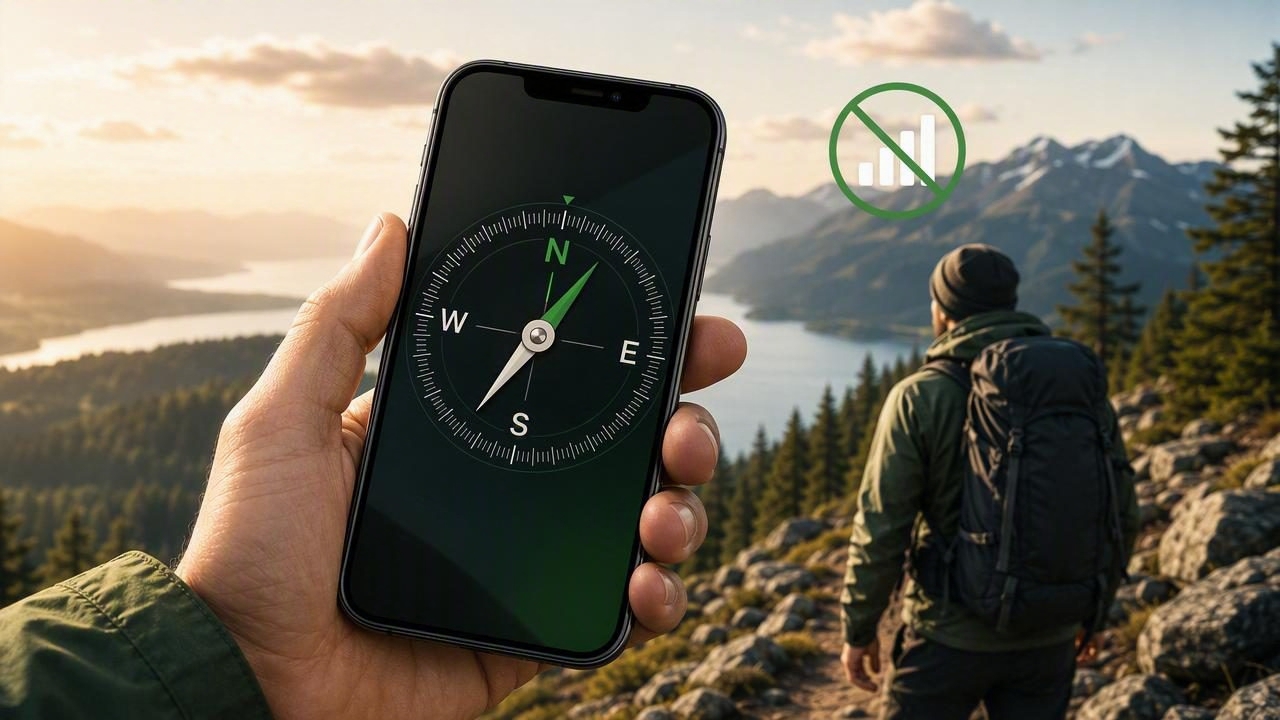
When you’re driving through a remote area, hiking under dense tree cover, or working in a basement with no reception, navigation apps can become frustrating fast. Maps may not load, location can drift, and a simple “Which way is north?” turns into guesswork. That’s where an offline compass app matters: it uses your iPhone’s built-in sensors to provide direction even when your phone has no cellular service and no Wi‑Fi.
This guide explains how an offline compass app works, what “offline” really means on iOS, how to calibrate for better accuracy, and practical ways to use it for outdoor navigation and everyday DIY tasks.
What “offline compass” actually means on iPhone
An offline compass app does not need an internet connection to display your heading (the direction your phone is pointing). That’s because iPhone direction is primarily calculated from on-device sensors:
- Magnetometer (detects Earth’s magnetic field)
- Gyroscope (tracks rotation and helps stabilize readings)
- Accelerometer (detects device orientation and movement)
Internet is only needed for things like downloading maps, pulling magnetic declination from online data sources, syncing tracks, or showing fancy overlays. The core compass function—showing a heading—can be fully offline.
Key takeaway: A true offline compass app can show direction anywhere your iPhone’s sensors work—even in airplane mode.
Why choose an offline compass app (instead of a map app)
Map apps are great when you have preloaded maps and a stable GPS signal. But they’re not always the fastest or simplest tool for basic orientation. An offline compass app is often the better choice when:
- You need instant direction (no loading, no tiles, no login).
- You want minimal battery drain (compass-only use can be lighter than constant map rendering).
- You care about privacy (offline tools can avoid sending location data to servers).
- You’re in a weak-signal environment (mountains, forests, canyons, underground, rural roads).
Offline compass vs online compass features
Not every “compass app” is built the same. Here’s a practical comparison to help you evaluate tools.
| Feature | Offline Compass App | Online/Connected Compass |
|---|---|---|
| Shows magnetic heading (N/E/S/W) | Yes | Yes |
| Works with no cell/Wi‑Fi | Yes | Sometimes limited |
| Map overlays / terrain tiles | No (unless preloaded separately) | Often yes |
| Magnetic declination updates | Usually manual or based on device location | Often automatic via internet |
| Account/sign-in required | Usually no | Sometimes yes |
| Privacy (data sharing risk) | Lower (especially if fully offline) | Higher (analytics, location sync) |
How accurate is an offline compass app?
On modern iPhones, compass readings can be quite good for everyday navigation, but they are not immune to error. Accuracy depends on:
- Magnetic interference (cars, steel beams, power tools, speakers, magnets in cases)
- Calibration quality (poor calibration can cause drifting or incorrect headings)
- How you hold the phone (flat vs upright can change readings depending on app design)
- Environmental conditions (electrical panels, elevators, reinforced concrete)
For hiking, an offline compass app is excellent for keeping a bearing, aligning yourself with a map, or confirming direction at a trail junction. For safety-critical navigation (whiteouts, offshore boating, wilderness travel), it should be treated as a backup to a physical compass and good route planning.
Calibration: the step most people skip (and regret)
If your compass seems “off,” calibration is the first fix. iOS may prompt you automatically, but it helps to understand good calibration habits:
Best practices for compass calibration
- Move away from metal: step away from cars, guardrails, rebar, toolboxes, and large speakers.
- Remove magnetic accessories: magnetic wallet cases, magnetic mounts, and some charging stands can affect readings.
- Do slow, controlled rotations: rotate the phone in a smooth figure-eight pattern for several seconds.
- Recalibrate when environments change: a compass calibrated indoors may behave differently outdoors near vehicles.
Quick field check (takes 10 seconds)
- Point your phone toward a known reference (sun position, a marked trail sign, or a physical compass).
- Rotate 90° and then back to the original heading.
- If the heading returns consistently, you’re likely calibrated well enough for practical use.
Using an offline compass app for real navigation
A compass is most useful when you use it with a simple method. Here are three practical workflows.
1) Holding a steady bearing on a trail
If you need to walk roughly northeast to rejoin a path or maintain direction through a confusing section:
- Stand still and let the compass settle for a second.
- Note the degree heading (e.g., 045°).
- Pick a visible landmark in that direction (a tree, rock, ridge line).
- Walk to the landmark, then repeat.
2) Orienting a paper map (offline-friendly)
If you carry a printed topo map, an offline compass app can help you line it up:
- Set the map flat.
- Use the compass to find north.
- Rotate the map so its north aligns with magnetic north (or adjust for declination if your map uses true north).
Note: Some apps show magnetic north by default. Maps often reference true north. The difference is called magnetic declination, which varies by location.
3) Getting un-lost in a low-signal city or travel situation
Even in cities, GPS can be unreliable between tall buildings. If maps are slow to load, an offline compass app helps you:
- Confirm which way you’re facing before you start walking.
- Follow a simple direction like “head east for two blocks” without second-guessing.
- Align yourself with street grids (common in many downtown areas).
DIY and home improvement uses for an offline compass app
“Compass” sounds like an outdoor tool, but it can help around the house too—especially when you’re planning orientation and layout.
Common DIY scenarios
- Finding sun-facing sides of your home for garden planning, window shades, or solar lighting placement.
- Aligning a shed, fence line, or garden bed to cardinal directions for consistent layout.
- Checking antenna or satellite accessory direction (initial rough alignment before fine-tuning with dedicated tools).
- Room orientation notes: quickly record “north wall” for renovation sketches or furniture plans.
How to tell if your compass reading is being distorted
Magnetometers are sensitive—by design. Here are warning signs that you’re seeing interference rather than true direction:
- Heading swings wildly when you’re standing still.
- Small movements cause huge changes (e.g., 30–60° shifts).
- Different spots in the same room show different north (common near steel beams and electrical panels).
Fix: Step outside or move several meters away from large metal objects, recalibrate, and try again.
Offline doesn’t mean “no permissions” (privacy + iOS settings)
An offline compass app may still request permissions depending on features:
- Location: used to compute declination or show coordinates (not required for basic magnetic heading).
- Motion & Fitness: sometimes used for smoother orientation tracking.
If you want maximum privacy, choose an app that works without accounts and keeps features available offline. On iOS, you can also review permissions anytime under Settings > Privacy & Security.
Developer corner: reading compass heading in iOS (Swift)
If you’re curious how iPhone compass apps retrieve direction, iOS provides heading updates via CLLocationManager. This simplified snippet demonstrates the core idea:
import CoreLocation

final class HeadingService: NSObject, CLLocationManagerDelegate {
    private let manager = CLLocationManager()

    override init() {
        super.init()
        manager.delegate = self

        // Request only what you need; some compass-only apps can work
        // without location permission for basic magnetic heading.
        manager.requestWhenInUseAuthorization()

        if CLLocationManager.headingAvailable() {
            manager.headingFilter = 1 // degrees of change before update
            manager.startUpdatingHeading()
        }
    }

    func locationManager(_ manager: CLLocationManager, didUpdateHeading newHeading: CLHeading) {
        let magnetic = newHeading.magneticHeading
        let trueHeading = newHeading.trueHeading  // -1 if not available
        print("Magnetic: \(magnetic), True: \(trueHeading)")
    }
}
Practical note: “True heading” may require location services and a good fix; magnetic heading is typically available offline.
Checklist: choosing a good offline compass app
When evaluating options, look for these traits:
- Works in airplane mode (test it!)
- No subscription required for core compass features
- Clear display with degrees and cardinal directions
- Fast calibration guidance and stable readings
- Offline-first design (no forced sign-in, no “loading” screen for basic use)
Safe expectations (and smart backups)
An offline compass app is a powerful tool to keep in your pocket, but treat it like any sensor-based measurement device: it’s only as reliable as its environment and calibration. For outdoor trips, consider:
- Carrying a small physical compass as a redundancy
- Saving offline maps (if you’ll need map context)
- Bringing a power bank for longer days
If you want a single iOS app that bundles compass functionality with other offline measurement tools (useful for DIY and field work), apps like Level Tool include an offline compass alongside utilities such as leveling and measuring—handy when you prefer fewer apps on your phone.
