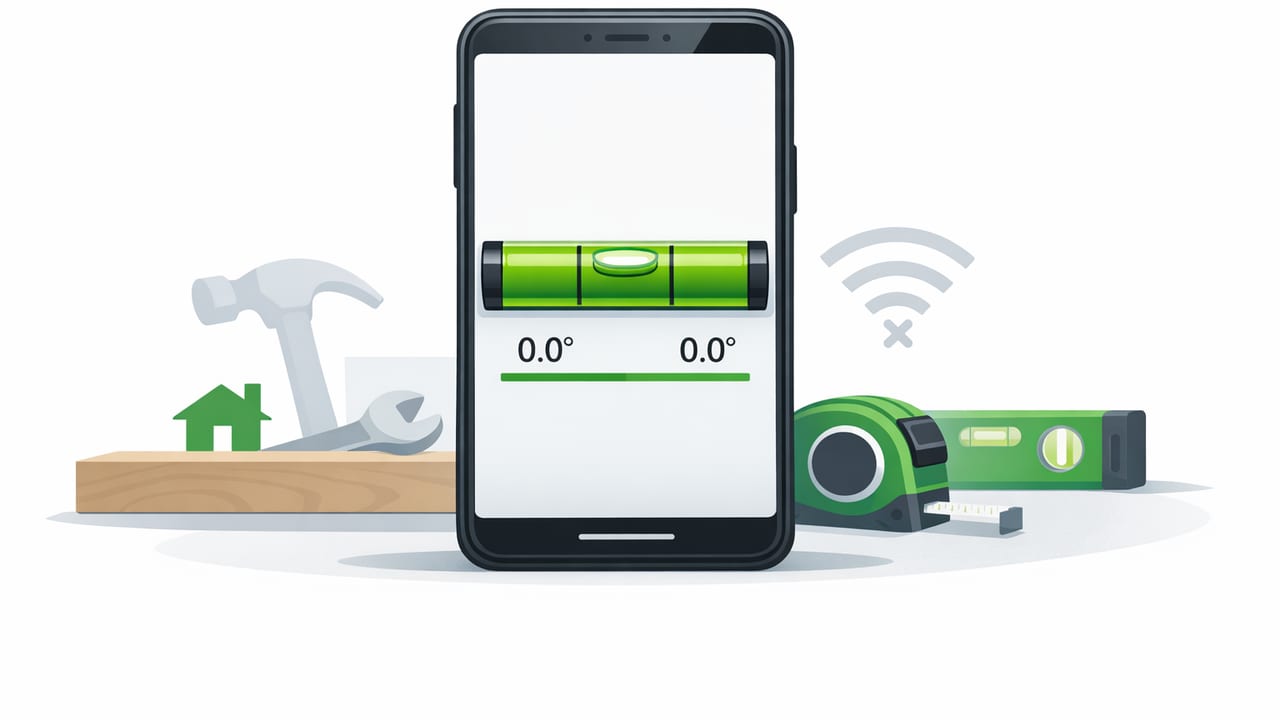
If you’ve ever started a DIY project and realized the level is missing (or the batteries in a digital level are dead), you already understand why an offline bubble level app no subscription option can be genuinely useful. A good iPhone bubble level app can help with quick alignment tasks—hanging frames, leveling appliances, squaring furniture, checking slopes—without relying on Wi‑Fi, accounts, or recurring fees.
This guide explains how offline bubble level apps work, what “accuracy” actually means in practice, and how to calibrate and verify readings so you can trust the results. It’s written for DIYers and pros who want a practical workflow, not hype.
What “offline” and “no subscription” really mean
An offline bubble level app runs entirely on your iPhone using onboard sensors and does not require an internet connection to function. “No subscription” means you don’t have to pay ongoing monthly or yearly fees to keep core leveling features available.
- Offline: Useful in basements, remote job sites, cabins, or anywhere cellular reception is unreliable.
- No subscription: Predictable access. Your tools don’t disappear behind a paywall after an update or trial ends.
- Privacy & reliability: Offline apps typically have less reason to transmit analytics or location data just to show a level.
A level is only helpful when you can open it instantly and trust what it shows—especially when you’re mid-install.
How an iPhone bubble level measures tilt
Most bubble level apps rely on the iPhone’s accelerometer and gyroscope. In simple terms:
- The accelerometer senses gravity’s direction (and motion).
- The gyroscope senses rotation and helps stabilize orientation changes.
- Software combines these signals (sensor fusion) to estimate the phone’s tilt angle relative to gravity.
This is why you can place your iPhone on a surface and get a pitch/roll reading. It’s also why calibration matters: even tiny sensor offsets or a slightly uneven phone case can shift the “zero.”
Key features to look for in an offline bubble level app (no subscription)
Not every level app is equally usable in real work. If your priority is an offline bubble level app no subscription that behaves like a tool (not a toy), look for these practical features.
| Feature | Why it matters |
|---|---|
| Calibration (one-tap or guided) | Lets you set a reliable zero on a known reference surface. |
| Dual-axis leveling | Shows both left-right and front-back tilt to reduce “looks level” mistakes. |
| Angle display (degrees) | Helpful for ramps, drain slope checks, miter setups, and repeatable cuts. |
| Hold/lock reading | Makes it easier to read angles in awkward positions (under sinks, near walls). |
| High-contrast UI | Improves visibility in garages, outdoors, or dim rooms. |
| No forced login / no internet dependency | Ensures it works on job sites and avoids friction when you need it fast. |
Calibration: the step most people skip (and the reason levels seem “wrong”)
If you want dependable results, treat calibration as part of setup—just like checking a tape measure hook or confirming a saw fence. The goal is to make the app’s “0.0°” match a trusted reference.
Quick calibration method (the flip test)
- Find a stable reference surface: A heavy countertop, a known-flat shelf, or a workbench you trust.
- Place the iPhone flat (remove thick cases if they rock).
- Note the reading (for example, +0.4°).
- Rotate the phone 180° on the same spot (same side down, just turned around).
- Compare: If the surface is truly flat, the readings should be equal magnitude and opposite sign (e.g., +0.4° and −0.4°). If not, calibrate and repeat.
Tip: If your surface isn’t perfectly level, that’s okay—the flip test still helps detect sensor offset. You’re not proving the bench is level; you’re checking consistency.
When to recalibrate
- After iOS updates (occasionally sensors behave slightly differently).
- After dropping the phone or changing to a different case.
- When moving between very hot and very cold environments (extremes can affect components).
- Whenever a reading “feels” wrong compared to a known physical level.
Accuracy in the real world: what you can trust (and what you can’t)
Smartphone levels can be surprisingly capable for everyday tasks, but expectations should match the job.
Great uses for a bubble level app
- Hanging pictures, shelves, towel bars, curtain rods
- Leveling appliances (washers, dryers, refrigerators)
- Checking if a tabletop, desk, or floor area is visibly out of level
- Aligning fence boards, cabinet faces, or simple framing checks
- Setting repeatable angles for small cuts or assembly
When to use a dedicated tool instead
- Long spans where straightness matters (e.g., 6–8 feet or more)
- Critical construction tolerances, structural work, or inspections
- Situations where the reference edge must be certified straight (machining, fine calibration)
A phone is compact; a long level bridges highs and lows across distance. For many home tasks, though, an offline bubble level app no subscription is fast, convenient, and “accurate enough” when calibrated.
Step-by-step: using an iPhone as a bubble level (DIY workflow)
1) Prepare the contact surface
Dust, crumbs, or a rocking phone case can introduce error. Wipe the surface and ensure the phone sits flat without wobble. If needed, remove a bulky case for the measurement.
2) Choose the right orientation
- Flat (screen up): Best for checking horizontal surfaces like shelves or appliances.
- On an edge: Best for checking vertical plumb (walls, posts, cabinet sides).
3) Use dual-axis readings to avoid “twist” errors
A common mistake is making one axis perfect while ignoring the other. Dual-axis leveling helps you catch slight twist—especially on wide shelves or appliances where front-to-back tilt matters too.
4) Lock/hold the reading for awkward spots
If you’re leveling a washing machine behind a door or checking slope under a sink, a hold feature prevents the reading from changing while you reposition the phone to view it.
Practical DIY examples (with target angles)
Example: Leveling a washing machine
- Place the phone on the washer top, near the front-left corner; note pitch and roll.
- Repeat near the front-right, then near the back. This helps identify whether one foot is low.
- Adjust feet incrementally and re-check until both axes are close to 0.0°.
Example: Setting a simple drain slope
Many drainage situations aim for a modest slope (often around 1–2%). In degrees, that’s roughly 0.6° to 1.1°. If your app displays degrees, you can set a repeatable slope instead of guessing by eye.
Example: Hanging a long shelf
- Check level across the shelf surface.
- Then check the wall bracket itself (vertical and horizontal). A shelf can look level while brackets are stressed if the wall mount points are off.
Troubleshooting: why your level reading keeps changing
Problem: The bubble drifts while the phone is still
- Cause: Micro-movements, soft surfaces, or sensor noise.
- Fix: Place the phone on a solid surface, wait a second for stabilization, and use hold/lock if available.
Problem: The phone rocks and can’t settle
- Cause: Thick case lips, camera bump contact, or uneven surface texture.
- Fix: Remove the case or use a thin, flat support plate under the phone.
Problem: The reading disagrees with a physical level
- Cause: One tool is uncalibrated, or you’re measuring different reference points.
- Fix: Do the flip test on both tools. Also ensure both are placed in the same location and orientation.
Offline-first checklist before you start a project
- Open the app once before you head to the job site (confirm it runs offline).
- Calibrate at home on a stable surface.
- Disable auto-rotate if the UI keeps flipping while you work.
- Bring a small cloth to clean contact surfaces.
- For long spans, pair your phone level with a straight edge or long level when possible.
FAQ: offline bubble level apps with no subscription
Do I need internet for accurate leveling?
No. Leveling uses device sensors; internet access doesn’t improve the physics. Offline operation is primarily about convenience, reliability, and reduced friction.
Will a “no subscription” app still get updates?
It can. Pricing model doesn’t determine update quality. What matters is whether the app supports current iOS versions and devices.
Is a phone level accurate enough for professional work?
For many installation and alignment tasks, yes—especially after calibration and when used on solid, repeatable reference surfaces. For certified measurements or long-span straightness checks, use dedicated tools.
Choosing your toolset: one solid level app beats five gimmicks
When you’re evaluating options, prioritize stability, calibration, offline usability, and clarity over flashy animations. A dependable offline bubble level app no subscription should open instantly, read consistently, and let you confirm accuracy with simple tests.
If you prefer an iOS toolkit that stays fully offline and bundles leveling with other measurement utilities (like ruler, compass, and more), Level Tool is one example to consider.
