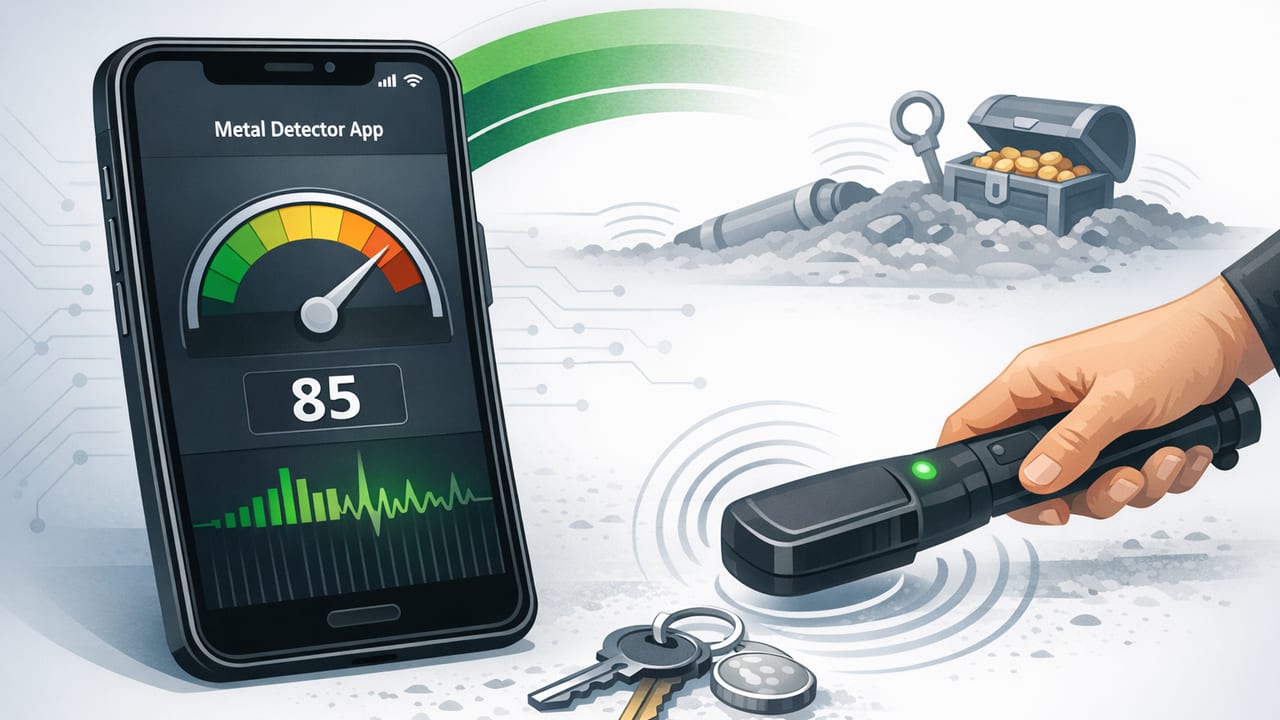
A metal detector app on iPhone can be surprisingly useful for everyday DIY—especially when you need a quick way to scan for magnetic metal near walls, floors, furniture, or gear. Unlike a dedicated metal detector, an iPhone app relies on the phone’s built-in sensors to measure changes in the magnetic field around you. That means it’s best for certain tasks (like locating screws, nails, steel studs, or magnetic interference) and not for others (like detecting gold rings in sand).
This guide explains how an iPhone metal detector app works, what it can realistically detect, how to improve accuracy, and practical home-improvement and navigation-related scenarios where it shines.
How a Metal Detector App Works on iPhone
Most iPhone “metal detector” features are actually magnetic field detectors. They use the device’s magnetometer (the same sensor that helps power the compass) to read the strength and direction of the local magnetic field.
What the magnetometer measures
- Magnetic field strength (often shown in microteslas, µT)
- Field changes as you move closer to or farther from an object
- Interference from electronics, wiring, speakers, and magnets
Key idea: A metal detector app doesn’t “see metal” directly—it detects magnetic field disturbances. That’s why some metals show up clearly and others barely register.
What a Metal Detector App Can (and Can’t) Detect
To set expectations, it helps to separate ferromagnetic metals (strongly magnetic) from non-ferromagnetic metals (weakly magnetic or not magnetic at all).
Usually detectable (best results)
- Iron
- Steel (screws, nails, brackets, some studs)
- Some stainless steels (depends on alloy—many are weakly magnetic, some are not)
- Magnets (very strong signals)
Often hard or unreliable to detect
- Aluminum (most common household aluminum is not magnetic)
- Copper wiring (not magnetic; the app may only react to nearby current or device interference)
- Gold and silver (not magnetic)
- Small objects deep behind thick materials (range is limited)
If your goal is classic “treasure hunting” (coins, jewelry, beach finds), you’ll want a dedicated detector. If your goal is DIY scanning and quick checks (finding a hidden nail before drilling), an iPhone metal detector app can be a practical first pass.
Typical Accuracy: What to Expect in Real Life
Accuracy depends on the sensor, your environment, and the object’s size and distance. In general, a phone-based metal detector is best at detecting strong magnetic sources at short range (often within a few centimeters, sometimes more for larger steel items).
Expect these constraints:
- Short detection range: Great for “near-surface” checks, limited for deep detection.
- Environmental noise: Appliances, speakers, power tools, and even a laptop can distort readings.
- Orientation sensitivity: Rotating the phone can change readings because the magnetometer is directional.
- Calibration drift: The compass/magnetometer may need recalibration after being near strong magnets.
Calibration and Setup Tips (Get More Reliable Results)
Small changes in setup can make your metal detector app much more consistent.
1) Calibrate the magnetometer
If your compass behaves oddly, your magnetic readings can too. Do a quick recalibration routine if your app supports it, or use the iPhone’s standard “figure-eight” motion in open space away from electronics.
2) Remove magnetic accessories
- Detach MagSafe wallets and magnetic cases if possible.
- Avoid placing the phone near keys, multi-tools, or magnetic clasps while scanning.
3) Establish a baseline reading
Before scanning a wall or surface, hold your phone away from it and note the background level. Then move slowly toward the surface and watch for a clear spike or pattern change.
4) Scan with a consistent technique
- Move slowly (fast movement makes it hard to interpret peaks).
- Keep a consistent distance from the surface.
- Use a grid pattern: left-to-right passes, then up-and-down passes.
- Mark peaks with painter’s tape for repeat checks.
Practical DIY and Home-Improvement Uses
Finding nails or screws before drilling
When mounting shelves, TV brackets, or curtain rods, an iPhone metal detector app can help you avoid hitting fasteners or metal plates behind drywall. Use it as a verification tool alongside measuring and stud-finding methods (like tapping, measuring from outlets, or checking building plans).
Confirming steel studs or corner bead
In many buildings, interior framing may use steel studs. Drywall corner beads can also be metal. Scanning can reveal repeating vertical peaks that suggest stud placement—useful for planning anchors or drilling points.
Locating hidden metal in reclaimed wood
If you work with pallets or reclaimed boards, hidden nails can damage saw blades. A quick scan along edges and knotty areas may help identify suspicious spots to inspect more closely.
Checking for magnetic interference near a workspace
Magnetic field spikes can affect compass-based navigation apps and some measurement workflows. A metal detector app can help you spot interference sources (speakers, chargers, power strips) and relocate them.
Outdoor and Navigation-Adjacent Uses
Because iPhone navigation tools often rely on magnetometer readings (especially compass heading at low speeds), knowing when your environment is magnetically “noisy” is useful.
- Troubleshoot erratic compass heading: Scan your immediate area (car hood, metal railing, large rock with iron content) and step away until readings stabilize.
- Detect magnetized gear: Some tool pouches, closures, or accessories can throw off compass readings when held close.
- Quick safety checks: Identify strong magnets around kids’ toys or workshop areas (strong peaks close-range).
Common Signal Sources (and What They Mean)
| Signal Pattern | Likely Cause | What to Do |
|---|---|---|
| Sharp spike only when very close | Small steel object (screw/nail) | Rescan slowly; mark the peak; confirm visually if possible |
| Broad, strong field over a larger area | Large metal mass or magnet (speaker, tool, appliance) | Move away and retest; remove nearby items while scanning |
| Noisy, unstable readings | Electronics interference (chargers, power strips) | Turn off/relocate electronics; re-baseline in a quiet area |
| Repeating peaks at regular spacing | Stud line with metal screws or steel studs | Use a grid scan; verify alignment with standard stud spacing |
Safety Notes (Important for DIY)
A metal detector app is a helpful indicator, but it does not reliably detect:
- Live electrical wiring (especially copper)
- Plastic pipes or non-metallic conduit
- All non-magnetic metals
If you’re drilling into walls, use appropriate safety steps: check building plans if available, drill shallow pilot holes, avoid drilling near outlets/switches, and use proper detection tools when needed.
DIY Developers: Reading Magnetometer Data on iOS (Conceptual Example)
If you’re curious what a metal detector app is doing under the hood, many implementations rely on Core Motion magnetometer updates and then compute the field magnitude.
import CoreMotion

let motion = CMMotionManager()

if motion.isMagnetometerAvailable {
    motion.magnetometerUpdateInterval = 0.1
    motion.startMagnetometerUpdates(to: .main) { data, error in
        guard let field = data?.magneticField else { return }
        // Magnetic field components (microteslas)
        let x = field.x
        let y = field.y
        let z = field.z

        // Magnitude (µT): higher values often indicate nearby magnetic material
        let magnitude = sqrt(x*x + y*y + z*z)
        print("Magnetic field: \(magnitude) µT")
    }
}
Real apps typically add smoothing (to reduce jitter), peak detection, and UI cues to make changes easier to interpret.
How to Choose a Good Metal Detector App (Practical Checklist)
- Shows numeric µT readings (not just a vague “bar”).
- Has a stable refresh rate and doesn’t lag during movement.
- Works offline so you can use it in basements, job sites, and remote areas.
- Includes calibration guidance and clear instructions.
- Plays well with other tools you use in DIY (level, ruler, compass) to reduce app switching.
FAQ: Metal Detector Apps on iPhone
Do metal detector apps work on all iPhones?
They work on iPhones with a magnetometer sensor (most modern models do). Performance varies slightly by hardware generation and environmental conditions.
Why does it spike near my laptop or speaker?
Speakers contain magnets, and electronics can introduce electromagnetic interference. A spike doesn’t always mean “hidden metal in the wall”—it can be a nearby device.
Can it find rebar in concrete?
Sometimes, if rebar is close enough to the surface and the environment is not too noisy. Depth and concrete thickness are limiting factors.
Is it accurate enough for drilling decisions?
It’s best treated as a supplemental indicator. Use it to confirm suspicious areas, then apply standard safe drilling practices.
Putting It All Together
A metal detector app on iPhone is most useful when you treat it as a magnetic field scanner: great for quick DIY checks, locating near-surface steel fasteners, identifying magnetic interference, and adding an extra layer of confidence before cutting or drilling. For best results, calibrate, reduce nearby magnetic accessories, scan slowly, and confirm peaks with repeat passes.
If you prefer keeping multiple offline measurement tools in one place (including a magnetic/metal detector-style tool alongside leveling and navigation utilities), apps like Level Tool bundle several sensor-based instruments into a single iOS toolkit.
