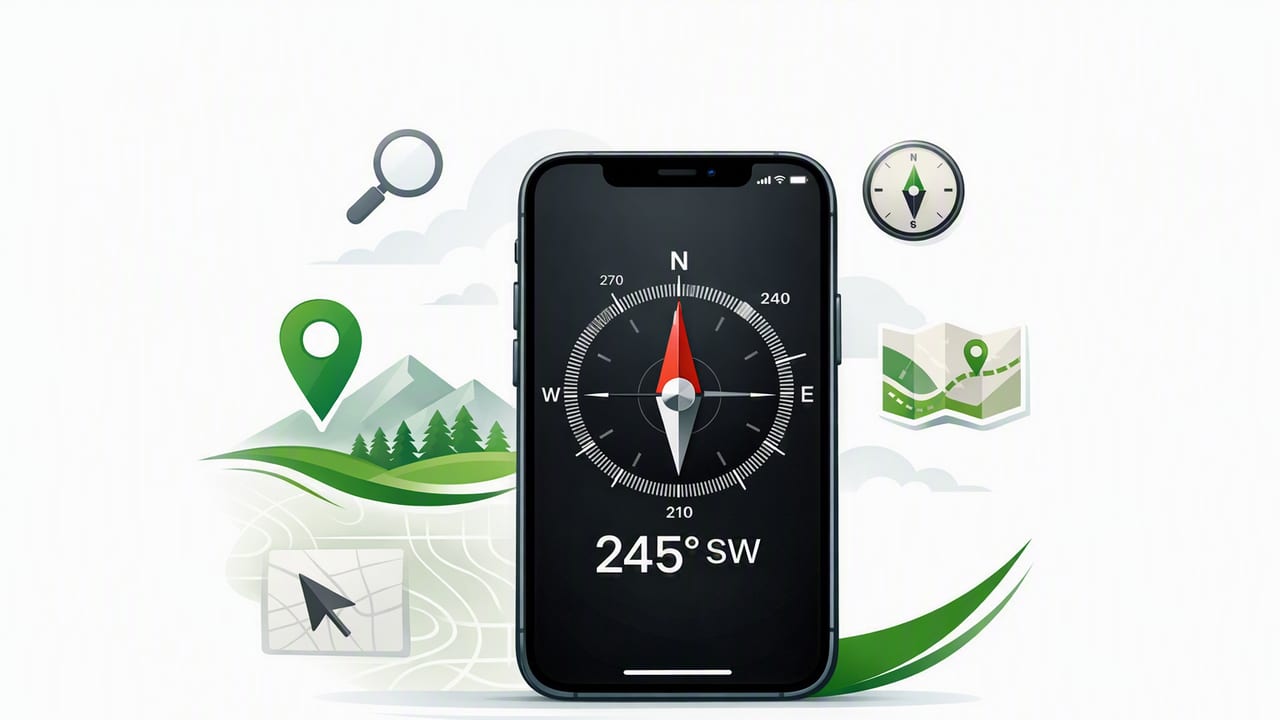
An iphone compass app can be surprisingly capable: it can help you orient a map, keep a steady bearing on a trail, align home projects to a specific direction, and even sanity-check where “north” is when landmarks disappear. But compasses on phones are also easy to misuse. Indoor magnetic interference, poor calibration, and confusion between magnetic north and true north can quickly turn a helpful tool into a frustrating one.
This guide explains how an iPhone compass works, what “accuracy” really means, how to calibrate it properly, and how to get reliable results offline—for both navigation and practical DIY tasks.
How an iPhone compass app works (and why it can drift)
Your iPhone doesn’t have a single “compass chip” doing everything. A compass app typically combines data from:
- Magnetometer: senses Earth’s magnetic field to estimate direction (magnetic heading).
- Gyroscope: tracks rotation to stabilize and smooth heading changes.
- Accelerometer: helps determine device orientation (tilt), which affects compass readings.
- GPS (optional): improves course-over-ground while you’re moving outdoors and can help estimate true heading in some contexts.
This sensor fusion is powerful, but it has tradeoffs. The magnetometer is vulnerable to nearby magnetic fields, and the phone’s own components (cases with magnets, MagSafe accessories, even metal desks) can introduce bias. That’s why a compass can appear “off” indoors even when the app is functioning correctly.
Magnetic north vs. true north (the key concept most people miss)
A compass naturally points to magnetic north, not true north (geographic north pole). The difference between them is called magnetic declination, and it varies by location.
Why it matters:
- If you’re following a paper topographic map with true-north bearings, you need declination correction.
- If you’re aligning something to “due south” for sunlight (solar panels, garden planning), true direction may be more relevant than magnetic direction.
Rule of thumb: For casual orientation, magnetic north is usually fine. For map-and-compass navigation or precise bearings, understand declination.
Quick declination workflow (practical)
- Look up your local magnetic declination (many mapping resources list it by city/coordinates).
- Decide if your target bearing is in true or magnetic.
- Convert when needed: True bearing ± declination = magnetic bearing (sign depends on whether declination is east or west).
If that sounds abstract, don’t worry—many navigation workflows avoid manual math by using true-north map apps. The important part is knowing that a “10° error” might not be an app problem; it could be normal declination for your area.
How to calibrate an iPhone compass app for better accuracy
Calibration is how your phone learns and corrects sensor bias. If your heading seems jumpy, consistently off, or rotates slowly when you’re not moving, start here.
Step-by-step calibration checklist
- Remove magnetic accessories: take off magnetized cases, wallets, rings/stands with magnets, and detach from MagSafe mounts.
- Move away from metal: step away from cars, steel benches, rebar in concrete, appliances, and toolboxes.
- Recalibrate with smooth motion: many iOS compass experiences prompt a figure-eight motion. Do it slowly and deliberately.
- Keep the phone level: extreme tilt can distort readings. Hold it relatively flat unless your app is designed for vertical orientation.
- Restart the app if it appears “stuck” after calibration.
Common calibration mistakes
- Calibrating indoors near appliances (fridges, speakers, HVAC equipment): you may “teach” the compass the wrong baseline.
- Fast, jerky figure-eights: can produce inconsistent results; smooth movements are more reliable.
- Calibrating once and assuming it’s permanent: changes in environment and accessories can reintroduce bias.
How to test compass accuracy (a quick reality check)
You don’t need lab gear to validate an iphone compass app. Use simple cross-checks:
1) Compare against known directions outdoors
On a clear day, stand away from large metal objects and compare your heading to a known landmark direction (for example, a street that runs north–south). Don’t expect perfection—expect consistency.
2) Use the “rotate 180°” consistency test
Face a direction and note the heading (e.g., 40°). Rotate your body 180°. The reading should be roughly 220° (40 + 180), within a small tolerance. If the error changes wildly, interference is likely.
3) Check stability
Hold still. A good reading should settle and drift minimally. Large wandering (without movement) often indicates nearby magnetic distortion.
Offline use: what works without signal (and what doesn’t)
A compass reading itself is sensor-based, so it can work offline—no cellular service required. But many navigation experiences combine compass + maps + location, and that’s where people get surprised.
Typically works offline
- Heading / bearing from the magnetometer
- Basic orientation (finding north/south/east/west)
- Relative bearings (e.g., “turn until you’re at 315°”)
May not work offline (or may be limited)
- Map tiles unless downloaded ahead of time
- Live traffic / routing
- Some location features if GPS is obstructed (dense forests, canyons, indoors)
Best practice: if you expect to be offline, download any needed maps in advance (when your map app supports it), and rely on the compass for direction confirmation rather than turn-by-turn routing.
Practical navigation techniques using an iPhone compass app
Follow a bearing (simple and effective)
- Determine your target bearing (from a map, guide, or landmark).
- Open your compass app and hold the phone steady.
- Turn until the heading matches your bearing.
- Pick a landmark straight ahead (a tree, rock, trail marker), walk to it, then repeat.
This “leapfrogging” approach reduces errors because you’re not constantly staring at the screen while moving.
Orient a paper map quickly
- Lay the map flat.
- Use your phone to find north.
- Rotate the map until its north aligns with the compass north (or apply declination if the map expects true north).
Use the sun as a secondary reference
If you have an approximate time and clear sky, the sun can help you sanity-check direction. A compass that says the sun is in the north at midday (in most northern-hemisphere locations) is a red flag that you’re near interference or poorly calibrated.
DIY and home improvement uses (beyond hiking)
An iphone compass app isn’t just for the outdoors. Direction can matter in home projects too—especially when you want consistent alignment room to room.
Use cases where a compass helps
- Aligning a workspace: keep a desk or workbench oriented consistently in a studio layout.
- Planning natural light: estimate which windows face south/west for afternoon light, plant placement, or glare control.
- Antenna or satellite accessories: get a rough direction before fine-tuning (always follow manufacturer instructions for final alignment).
- Property and garden planning: approximate orientation for beds, trellises, and shade patterns.
Note: indoor compass readings can be distorted by wiring, appliances, and structural steel. When direction truly matters, verify outdoors near the building and translate the orientation inside.
Feature checklist: what to look for in a good iPhone compass app
Not all compass apps are equal. Some focus on minimalism; others add navigation utilities. Here’s a practical comparison of common features and who benefits.
| Feature | Why it matters | Best for |
|---|---|---|
| Large, readable heading (degrees) | Reduces user error; easy to follow bearings | Hiking, fieldwork, quick checks |
| True north option / declination handling | Matches map bearings and geographic directions | Map navigation, surveying-style tasks |
| Stability smoothing | Prevents jitter when you’re holding still | DIY alignment, teaching, demonstrations |
| Offline operation | Works in remote areas and during outages | Backcountry, travel, emergency kits |
| Waypoint / bearing lock | Helps keep a consistent direction over distance | Trail navigation, open terrain |
| Integrated tools (level, ruler, barometer) | Reduces app switching during projects | DIY, home improvement, multi-tasking |
Troubleshooting: fix common compass problems fast
Problem: The compass points the wrong way indoors
- Move away from electronics and metal structures.
- Remove magnetic accessories and retest.
- Try near a window or step outdoors to confirm.
Problem: The heading jumps around
- Hold the phone flatter and stiller.
- Recalibrate with slow, smooth motion.
- Check if you’re near a car, bike, or tool bag.
Problem: It’s consistent but “off” by a fixed amount
- Consider local magnetic declination (this can be a normal offset).
- Verify whether your map or instructions expect true north vs magnetic north.
A simple way to log bearings (optional workflow)
If you take multiple bearings (for example, scouting a route or noting where a feature lies), consistency matters. Create a tiny note template you can reuse:
Location: ______________________
Date/Time: _____________________
Bearing (magnetic/true): ________
Declination used: ______________
Notes/landmarks: _______________
This makes your readings actionable later—especially if you’re comparing bearings with a map or sharing directions with someone else.
Safety note: don’t over-trust a phone compass
A phone compass is a great tool, but it shouldn’t be your only tool in high-stakes situations. In remote travel, bring redundancy: a basic physical compass, a paper map, and enough battery (or a power bank). In DIY contexts, don’t use a compass reading to ignore building codes, manufacturer specifications, or professional judgment.
Wrap-up: get reliable results from an iPhone compass app
To get the most from an iphone compass app, focus on three fundamentals: calibration (especially after changing cases or mounts), interference avoidance (step away from metal and electronics), and north reference clarity (magnetic vs true). Do that, and a phone compass becomes a dependable offline helper for navigation and for everyday orientation tasks around home projects.
If you prefer keeping multiple offline measurement utilities together (compass plus leveling and other sensor-based tools), an all-in-one option like Level Tool can reduce app switching—just remember the same accuracy principles apply no matter which app you use.
