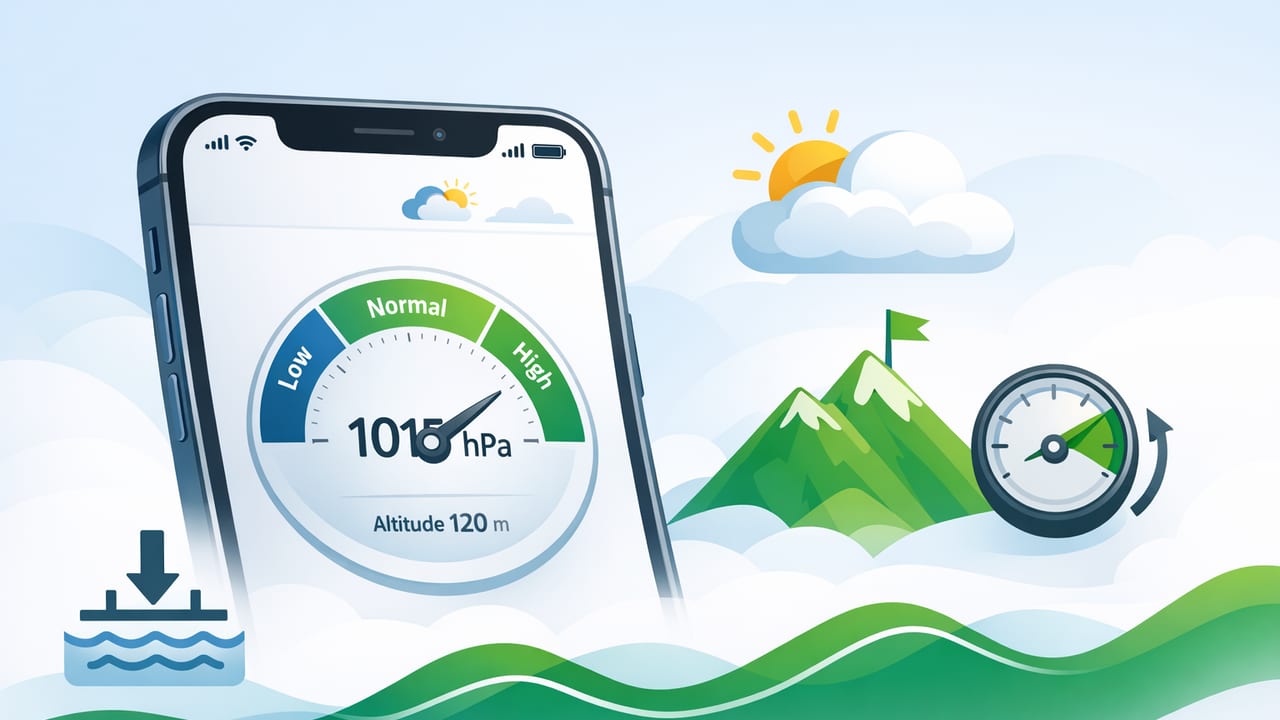
An iPhone barometer is one of the most underused sensors in your pocket. While it’s best known for tracking elevation in fitness apps, barometric pressure can also help you make smarter decisions for DIY projects, basic weather awareness, and offline navigation. The trick is understanding what the iPhone is actually measuring (air pressure), what it can infer from that (relative altitude changes), and what it can’t reliably tell you without context (true altitude above sea level).
This guide breaks down how the iPhone barometer works, how to interpret the numbers, and how to get more consistent readings—whether you’re checking changing weather before a hike or comparing pressure differences between floors of a building.
What the iPhone barometer measures (and what it doesn’t)
A barometer measures air pressure: the force of the atmosphere pushing on a surface. On iPhone, the sensor is a tiny MEMS (micro-electro-mechanical systems) pressure sensor that reports pressure in common units like hPa (hectopascals) or mbar (millibars). For practical purposes, 1 hPa = 1 mbar.
Because air pressure generally decreases as you go higher, iOS can also estimate relative altitude change (how many meters you’ve gone up or down compared to where you started). This is excellent for detecting floor-to-floor changes, climbs, and descents.
However, barometric pressure is influenced by more than height:
- Weather systems (high/low pressure) can change readings significantly.
- Indoor HVAC and airflow can create small pressure differences.
- Temperature and sensor drift can introduce minor variation.
So if you’re looking for a precise “elevation above sea level,” you’ll typically need a reference: a known local pressure, a weather station, or GPS elevation (which has its own limitations). The iPhone barometer shines most in trend tracking and relative changes.
Which iPhones have a barometer?
Most modern iPhones include a barometer, and many apps can access it through iOS frameworks. If you’re unsure, you can confirm by installing any barometer-capable measurement app and seeing whether it reports live pressure values.
In general, if your iPhone supports motion and fitness features like stair-climb detection and elevation tracking, it likely includes a barometric sensor.
Common barometer units on iPhone (quick reference)
Barometric pressure is commonly shown as:
- hPa (hectopascals) — widely used in meteorology
- mbar (millibars) — numerically identical to hPa
- inHg (inches of mercury) — common in the US
- mmHg — sometimes used, less common for weather apps
If your app lets you switch units, choose the one you’re most comfortable reading. Meteorology resources often report pressure in hPa, which can make comparisons easier.
How to interpret pressure: a practical table
Sea-level pressure varies by location and weather, but typical values cluster around 1013 hPa. A single number is less important than the trend (rising or falling). Use the table below as a starting point.
| Pressure (hPa) | Typical Meaning | What you might notice |
|---|---|---|
| < 1000 | Lower pressure / unsettled | Higher chance of wind, rain, or changing conditions |
| 1000–1020 | Normal range | Conditions depend more on trend and local forecast |
| > 1020 | Higher pressure / more stable | Often calmer, clearer weather (not guaranteed) |
Tip: A fast drop in pressure over 1–3 hours is often more meaningful than the absolute value. Many outdoor users watch for rapid declines as an early warning signal.
How to get more accurate iPhone barometer readings
Your iPhone barometer is sensitive; that’s good for detecting changes, but it also means technique matters. Use these steps to get cleaner, more consistent data.
1) Give the sensor time to stabilize
When you first open a barometer screen, watch the reading for 15–30 seconds. If the numbers bounce slightly, that’s normal—wait for it to settle before logging a value.
2) Avoid blocking ports and airflow
Some cases or grips can affect airflow around the device, especially if you’re holding it tightly. If you’re troubleshooting weird results, remove the case and try again.
3) Compare to a local reference (when absolute accuracy matters)
If you need more than trend data—say you want an approximate altitude above sea level—compare the iPhone pressure to a nearby weather station’s sea-level pressure. Apps may display either:
- Station pressure (pressure at the station’s elevation), or
- Sea-level pressure (normalized to sea level for forecasting)
Make sure you’re comparing like-for-like. Most public forecasts show sea-level pressure.
4) Watch for indoor pressure quirks
Elevators, stairwells, and HVAC systems can cause short-lived pressure changes. That doesn’t mean the sensor is wrong—it means the air around you is changing. If you’re trying to measure elevation changes indoors, take multiple readings and look for consistency.
5) Use trends, not single snapshots
For weather awareness and many DIY checks, a 30–60 minute trend line is more actionable than one reading. If your app supports logging or a history graph, use it.
DIY and home-improvement uses for an iPhone barometer
The iPhone barometer isn’t just for hikers. Here are practical, non-gimmicky ways to use barometric pressure and relative altitude in home contexts.
Estimate floor-to-floor changes during layout and planning
Because iOS can compute relative altitude, you can often detect vertical movement between floors. This can be helpful when you’re mapping where a pipe run or cable route might travel vertically, or when you’re noting how many meters you climbed between a basement and a second floor.
Track pressure shifts before painting, caulking, or outdoor sealing
Weather changes influence drying and curing conditions. While humidity and temperature are primary factors, a sharp pressure drop can signal unstable conditions. If you’re on the fence about starting an outdoor sealing job, pressure trends can be another data point to check.
Diagnose “drafty” zones (as a clue, not proof)
In some homes, pressure differences between rooms (especially with doors closed and HVAC running) can contribute to noticeable drafts. A barometer won’t replace a proper blower door test, but a consistent pressure difference pattern—combined with your observations—can help you decide where to focus weatherstripping or insulation checks.
Outdoor navigation and safety: why pressure trends matter
If you hike, camp, or climb, an iPhone barometer can add context when you’re offline or out of signal range. The key benefits:
- Early weather awareness: a rapid pressure drop may indicate an approaching front.
- Relative altitude tracking: helpful for monitoring climbs/descents even when GPS is spotty.
- Cross-checking conditions: pressure trend + clouds/wind + forecast (when available) is stronger than any single source.
For navigation, remember: barometer-based altitude is usually best for relative movement. If you need a precise location fix, you’ll still rely on maps, GPS, and a compass bearing.
Common problems (and what to do)
“My pressure reading seems wrong compared to the weather app.”
This is often a mismatch between station pressure and sea-level pressure. Many weather services report sea-level pressure, which will differ from what you measure at altitude. Also ensure you’re comparing the same units (hPa vs inHg).
“The reading jumps when I move my phone.”
Small changes can be real—moving the phone quickly, walking up a slight incline, or entering a different airflow zone can cause pressure variation. For clean readings, stand still for a moment and hold the phone consistently.
“I can’t get a stable altitude.”
Altitude derived from pressure is sensitive to weather. If pressure is changing due to a front moving in, your “altitude” baseline will drift even if you’re standing still. In this case, treat altitude as relative and reset your baseline occasionally (many apps offer a re-zero feature).
For developers: reading barometer data in iOS (Swift)
If you build iOS utilities, Apple provides barometer/altitude access via CMAltimeter (Core Motion). This reports relative altitude and pressure updates when available.
import CoreMotion

let altimeter = CMAltimeter()

if CMAltimeter.isRelativeAltitudeAvailable() {
    altimeter.startRelativeAltitudeUpdates(to: .main) { data, error in
        guard let data = data, error == nil else { return }

        // Relative altitude in meters (change since start)
        let meters = data.relativeAltitude.doubleValue

        // Pressure in kilopascals (kPa). Convert to hPa by *10.
        let pressureKPa = data.pressure.doubleValue
        let pressureHpa = pressureKPa * 10.0

        print("Δaltitude: \(meters)m, pressure: \(pressureHpa) hPa")
    }
}
Note: Core Motion reports pressure in kPa in this API. Converting to hPa (common for weather) is typically hPa = kPa × 10.
FAQ: iPhone barometer essentials
Is an iPhone barometer accurate enough for real use?
For trends and relative altitude changes, yes—often very useful. For exact sea-level pressure or absolute altitude, accuracy depends on calibration and local conditions.
Can I use the iPhone barometer offline?
Yes. The barometer is a device sensor, so readings themselves don’t require internet. Some apps add online features (like fetching local sea-level pressure), but sensor measurement works offline.
Does air pressure always drop when I go up?
Generally, yes. But short-term weather changes can raise or lower pressure over time, which is why the “altitude” you calculate from pressure can drift if the weather shifts.
Putting it all together
The iPhone barometer is most powerful when you use it the way pilots and hikers do: as a trend instrument. Watch pressure changes over time, use relative altitude for climbs and descents, and cross-check with your environment and local references when absolute numbers matter.
If you like having multiple offline measurement utilities in one place (including a barometer alongside leveling and navigation tools), an all-in-one iOS toolkit such as Level Tool can be a convenient way to keep everything accessible without relying on a signal.
