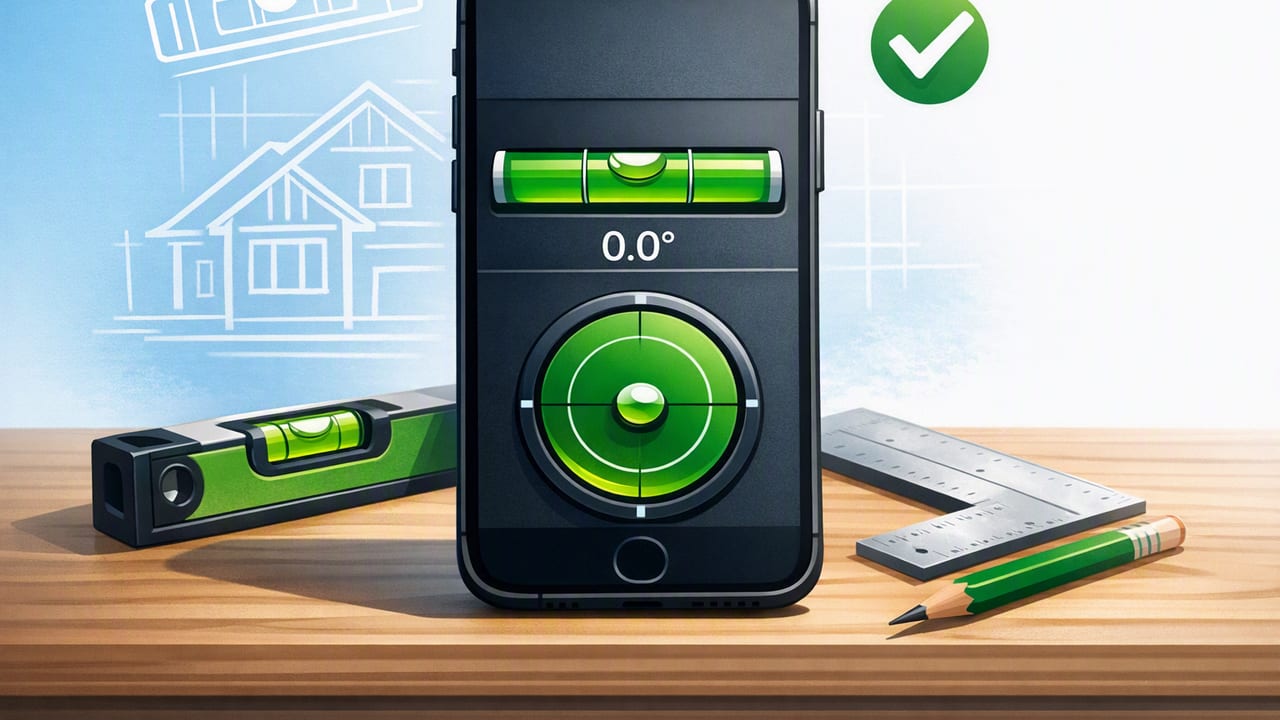
If you’re searching for the best bubble level app for iPhone, you’re probably trying to do one of two things: get a quick “is this straight?” check, or replace a physical level for real DIY work (shelves, frames, appliances, decks, tiling, and more). The challenge is that not all level apps are equally reliable. Some are beautifully designed but loosely calibrated. Others are accurate but hard to read or not practical on a job site.
This guide explains what actually matters in a bubble level app—accuracy, repeatability, ease of calibration, sensor handling, readability, and offline reliability—and how to test any iPhone level app before you trust it with your project.
What a bubble level app really measures on iPhone
A bubble level app uses iPhone motion sensors (primarily the accelerometer and gyroscope) to estimate device orientation relative to gravity. In plain terms, it detects tilt in degrees and displays that tilt as a “bubble” (or as numeric angles) so you can align an object to level (0°) or plumb (90°).
The app itself doesn’t “make” the measurement accurate—your iPhone sensors do. The app’s job is to:
- Read sensor data cleanly (filter noise, avoid drift)
- Display results clearly (easy to interpret, bright, stable)
- Let you calibrate (so 0° truly matches your reference)
- Offer modes that match real tasks (flat surfaces, edges, plumb)
Key features to look for in the best bubble level app for iPhone
1) Dual-axis leveling (X/Y tilt)
Single-axis levels are fine for simple edge checks, but many DIY tasks need you to ensure a surface is level in two directions (front-to-back and left-to-right). A dual-axis display helps you avoid the common mistake of getting one axis perfect while the other is still off.
2) Clear “level” and “plumb” references
Look for an app that makes it obvious when you’ve hit your target. Helpful cues include:
- Large numeric readouts (degrees or slope)
- High-contrast bubble or crosshair
- Audible or haptic feedback (optional, but great for solo work)
3) Calibration that’s easy and repeatable
Calibration is the difference between “looks about right” and “I can trust this.” The best apps include a calibration workflow that accounts for small sensor offsets and lets you verify the result quickly.
4) Stability (sensor filtering) without lag
Some apps are jittery; others smooth the reading so much that it lags behind your movement. The sweet spot is a display that stays stable when the phone is still, but updates quickly when you adjust the object.
5) Offline functionality
Many people use a level in basements, garages, new builds, or remote cabins—places where signal may be weak or nonexistent. An offline app is also faster to launch and avoids distractions. Offline use doesn’t inherently make the measurement more accurate, but it makes the tool more dependable day-to-day.
6) Edge mode or “on a side” use
Real projects often require leveling against an edge (a stud, cabinet face frame, post, or door jamb). The app should work well when the iPhone is placed on its side, ideally with a dedicated view for that orientation.
A practical checklist: how to test accuracy in 5 minutes
Before you rely on any app for a shelf, backsplash, or appliance install, do this quick verification. You don’t need a lab—just a known flat surface and a little patience.
- Pick a stable surface (countertop, solid table, or a quality physical level).
- Take a reading with the phone lying flat. Note the angle (e.g., 0.2°).
- Rotate the phone 180° in the same spot (top becomes bottom). Take a second reading.
- Compare the two numbers:
- If the surface is truly level, the readings should be equal in magnitude and opposite in sign (e.g., +0.2° and -0.2°).
- If they’re not, calibrate and repeat until they match closely.
- Repeat on the phone’s side (edge mode). This checks “plumb/vertical” performance.
Tip: Don’t obsess over absolute zero on an imperfect countertop. You’re testing repeatability. A trustworthy bubble level app gives consistent results when you flip the phone.
Common DIY scenarios (and how a good level app helps)
Hanging shelves and pictures
For shelves, dual-axis matters because walls can have subtle bows. Use the phone to level the shelf and confirm the bracket isn’t twisted. For picture frames, a single-axis reading is often enough, but numeric degrees help when you’re nudging by fractions.
Leveling appliances (washer, dryer, refrigerator)
Appliances are notorious for vibration and “walking.” A stable display helps you dial in the feet precisely. Dual-axis is especially useful on a washer: you want the top panel level both directions to reduce noise and wear.
Setting posts and checking plumb
When you’re setting a fence post or a 4x4 for a pergola, use the app in side mode. Check two adjacent faces of the post (front and side). A good app makes it easy to read plumb quickly without guessing.
Tile layout and small slope checks
Not everything should be perfectly level—showers and exterior surfaces often need slope. Numeric degree readouts help you replicate a target slope consistently across a run.
Feature comparison table: what to evaluate
| Feature | Why it matters | How to verify quickly |
|---|---|---|
| Calibration | Corrects sensor offsets so 0° is meaningful | Flip test (0° vs 180° rotation) |
| Dual-axis view | Prevents one-direction-only mistakes | Place phone flat, tilt diagonally, see both axes respond |
| Edge/plumb mode | Needed for studs, posts, door jambs | Hold against a door frame and compare both sides |
| Readability | Faster decisions, fewer errors | Try it in bright light and low light |
| Stability | Less jitter, better fine adjustments | Set phone down and observe if it “hunts” around |
| Offline use | Reliable in garages, basements, remote work | Enable airplane mode and confirm full functionality |
How to calibrate a bubble level app (best practice)
Every app’s button labels differ, but the method is consistent. Here’s a reliable approach you can adapt:
- Choose a reference: a quality spirit level, a flat machinist surface, or a sturdy countertop you can re-check.
- Calibrate flat: place the phone on the reference, calibrate to 0°.
- Verify with the flip test: rotate the phone 180° in the same spot. If it doesn’t match, calibrate again (or use the app’s two-point calibration if available).
- Calibrate on an edge (if supported): repeat the process with the phone on its side for plumb work.
Important: Remove thick cases or camera bump interference when possible. A raised case edge can prevent full contact with the surface and introduce a small but real angle error.
Accuracy expectations: what’s “good enough” for DIY?
For most home projects, you’re not chasing aerospace tolerances. A realistic target is:
- Repeatability within about 0.1°–0.2° on stable surfaces
- Clear, consistent “level” indication with minimal jitter
Even if an app claims extreme precision, your result depends on contact, surface flatness, and technique. The goal is confidence and repeatable outcomes—especially when you’re aligning multiple items (like a row of cabinets or a gallery wall).
Best practices for better results (simple but often ignored)
- Use the longest reference you can: small phones amplify local bumps; spanning a larger area reduces error.
- Mind the camera bump: place the phone so it sits flat or use a straight edge under the phone if needed.
- Let readings settle: wait a second after moving the phone so the sensor filter stabilizes.
- Check twice, from two directions: especially for plumb posts and cabinet faces.
- Keep it offline and distraction-free: fewer interruptions when you’re balancing on a ladder.
Troubleshooting: when the reading seems “wrong”
The bubble drifts while the phone is still
This is usually sensor noise or magnetic/physical vibration. Move away from active machinery, set the phone down on a sturdier surface, and check whether the app offers a steadier mode or smoothing.
0° looks different depending on orientation
That’s a calibration issue (or a phone case/contact issue). Repeat the flip test and recalibrate with the case removed.
Two apps disagree
Pick one app and validate it against a physical level. Two apps can read the same sensors but apply different filtering or calibration defaults.
FAQ: choosing the best bubble level app for iPhone
Do iPhone level apps work as well as a real spirit level?
For many household tasks, yes—especially if you calibrate and use good technique. For critical work (long spans, structural alignment), a quality physical level is still a smart backup.
Is a free level app good enough?
Sometimes, but free apps often trade reliability for ads, online dependencies, or limited calibration. If you frequently do DIY work, prioritize calibration, readability, and offline reliability over novelty features.
What’s the single most important test?
The 180° flip test. It quickly reveals whether the app (and your setup) is producing consistent measurements.
Bottom line: what “best” really means
The best bubble level app for iPhone is the one that delivers repeatable readings, supports dual-axis leveling, offers easy calibration, stays readable on real job sites, and works offline when you need it most. Don’t rely on marketing claims—verify with a simple flip test, then use the app confidently across your DIY and professional projects.
If you prefer an offline iOS option that combines a bubble level with several other measurement tools in one place, you can also look at Level Tool as a practical all-in-one alternative.
