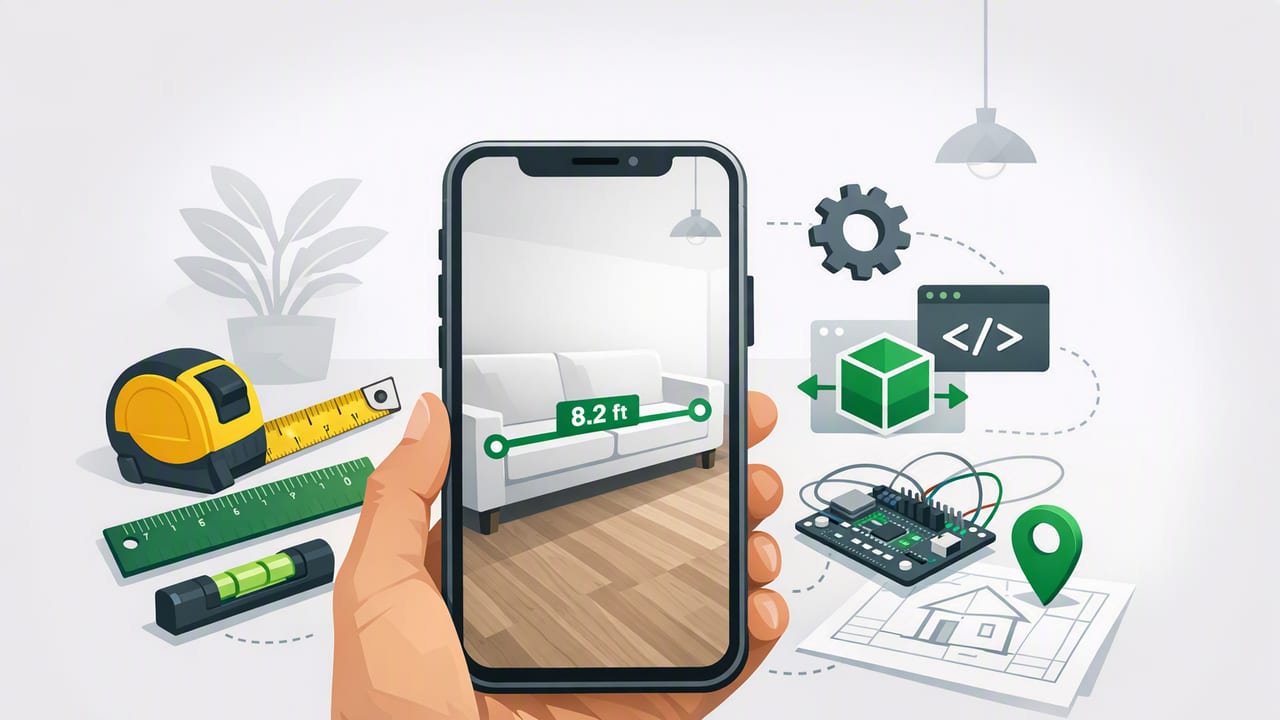
A good diy measurement app can turn your iPhone into a compact toolbox for everyday projects: leveling a shelf, measuring a gap, checking direction on a hike, or estimating elevation changes outdoors. While a phone won’t replace every specialized instrument on a jobsite, modern iPhones have surprisingly capable sensors—and with the right workflow you can get reliable, repeatable results for DIY and light professional use.
This guide explains what these apps can do, how the sensors work, where accuracy comes from, and how to build a practical “phone-first” measurement routine for home improvement and navigation—especially when you need tools that work offline.
What a DIY measurement app typically includes (and what each tool is for)
Many iOS measurement toolkits bundle multiple instruments into one app. The most useful set tends to cover:
- Bubble level / spirit level (single-axis): quick “is it level?” checks for shelves, frames, appliances.
- Dual-axis level: checks both left-right and front-back tilt at once—helpful for surfaces like tables, mounts, tripods.
- Ruler / tape-style measuring: fast estimates for small items, gaps, and material planning (best for short distances).
- Compass: heading and basic orientation outdoors, plus quick alignment for layouts.
- Altimeter / barometer: track elevation change and pressure trends for hikes or weather-aware planning.
- Magnetometer-based metal detection: locating ferrous metal behind surfaces (e.g., some fasteners, pipes, brackets) or around work areas.
- Angle meter / inclinometer: set or verify angles for ramps, stairs, saw setups, and slopes.
- “Straight line” helpers (often laser-style projection overlays): visual alignment aid for layouts and marking.
The value isn’t only convenience. It’s also consistency: one interface, one calibration approach, one place to record results.
How iPhone measurement apps work (in plain English)
Most measurement readings come from a few core sensors:
- Accelerometer: detects linear acceleration and gravity. Apps use gravity to infer tilt/level.
- Gyroscope: detects rotation. Helps stabilize and smooth tilt/angle readings.
- Magnetometer: detects magnetic fields for compass headings and metal detection signals.
- Barometer (on supported iPhones): estimates air pressure to infer elevation changes and pressure trends.
Accuracy depends on two things: the quality of the sensors and how the app calibrates, filters noise, and displays results. Even a great sensor can produce shaky output if the software is poorly tuned.
When a diy measurement app is the right tool (and when it isn’t)
Use your phone confidently for:
- Hanging frames and mirrors
- Leveling appliances (washer/dryer, fridge) and furniture
- Quick angle checks (ramps, slopes, supports)
- Basic navigation and orientation outdoors
- Rough measurement planning for materials and spacing
Bring dedicated tools for:
- Code-critical construction where tolerances are tight and documentation is required
- Long-distance measurements (use a tape measure or laser distance meter)
- Precision surveying (requires specialized equipment and procedures)
- High electromagnetic noise environments (compass/metal readings become unreliable)
Rule of thumb: If you’d redo the project because you were off by 1–2 mm or 0.1–0.2°, use a dedicated tool—or verify with one before final fastening.
A practical workflow: get more accurate readings in 60 seconds
Most “my level app seems wrong” issues come from setup, not sensors. Run this quick routine before you trust the numbers:
- Clean the contact surface: dust, tile grout ridges, or a screw head under the phone can skew tilt.
- Remove bulky cases (if possible): uneven camera bumps and flexible cases can rock on surfaces.
- Let the phone settle: place it down and wait a second for the reading to stabilize.
- Flip test (great for level accuracy): note the angle, rotate the phone 180° on the same spot. The magnitude should match (sign may invert). If it doesn’t, recalibrate.
- Use a consistent reference edge: always align the same side of the phone to the surface for repeatable results.
DIY task cheat sheet: which tool to use (with pro tips)
| DIY Task | Best App Tool | Tips for Better Accuracy |
|---|---|---|
| Hang a shelf level across studs | Bubble level + angle meter | Measure level on the shelf itself; confirm the bracket line before drilling. |
| Align a row of frames | Laser/straight-line overlay + ruler | Mark a reference line once, then measure equal spacing from that line. |
| Level a washing machine | Dual-axis level | Check front-to-back and left-to-right; adjust feet in small increments. |
| Set a ramp or slope | Inclinometer | Average multiple readings; avoid measuring while the surface flexes. |
| Find likely metal fasteners behind drywall | Metal detector (magnetometer) | Move slowly in a grid; keep away from speakers, tools, and magnets. |
| Basic trail orientation and bearings | Compass | Calibrate away from metal; hold the phone flat; re-check after moving. |
| Track elevation gain on a hike | Altimeter/barometer | Use trends over time; weather shifts affect absolute elevation estimates. |
Offline functionality: why it matters more than you think
A measurement tool should work in a basement, on a remote trail, in a garage with poor reception, or inside a metal building where signals bounce. Offline apps are also simpler to trust for two reasons:
- Fewer variables: readings come from sensors, not from an internet connection or external services.
- Faster access: you can open the tool instantly, even in airplane mode or low-power situations.
For navigation-related tools (compass/altimeter), offline use is especially important because you often need them exactly when you’re outside coverage.
Calibration and accuracy: what to do (and what to avoid)
Level and angle calibration
Apps vary, but most offer a calibration step. Use a known-flat surface (countertop, thick glass, or a verified level reference) and follow the prompts. If there’s no explicit calibration, rely on the flip test and consistency checks.
Compass calibration
Compass accuracy is sensitive to magnetic interference. For best results:
- Step away from metal shelving, cars, rebar, and power tools.
- Remove magnetic accessories (magnetic phone mounts, MagSafe wallets with magnets).
- Recalibrate when you change environments (indoors → outdoors, city → trailhead).
Barometer/altimeter expectations
Barometers are great for relative changes (pressure trend, elevation gain/loss). Absolute elevation may drift with weather. If you’re logging elevation, focus on change over time rather than a single reading.
Make your results repeatable: log measurements the same way every time
One underrated advantage of using your phone as a measurement kit: you can record readings immediately. Create a simple notes template so you don’t lose numbers mid-project.
Project: Floating shelf (living room)
Reference: top edge of bracket line
Level target: 0.0°
Reading A (left): 0.1° down
Reading B (right): 0.2° down
Action: shim right bracket 1 mm, re-check
Final: 0.0° to 0.1° variance
Date/Notes: stud spacing 16", anchors #10
This makes it easier to troubleshoot later (“why is this door rubbing?”) and helps you repeat a setup across multiple rooms.
Troubleshooting: common issues and fast fixes
“My level keeps drifting.”
- Make sure the phone isn’t rocking on a camera bump or case edge.
- Try a different contact edge of the phone and be consistent.
- Close other apps that may be using sensors heavily (rare, but can add noise).
“Compass heading is inconsistent.”
- Move away from metal and magnets (including magnetic mounts).
- Hold the phone flat and still for a second.
- Recalibrate when you change location.
“Metal detector shows spikes everywhere.”
- Turn off or move away from speakers, chargers, and large power supplies.
- Scan slowly in a grid pattern; compare readings at multiple distances.
- Use it as an indicator, then confirm with a secondary method if needed.
Safety and best practices for DIY projects
Measurement is only part of safe DIY. Keep these basics in mind:
- Verify before drilling: if you suspect wires/pipes, use appropriate detectors and proceed cautiously.
- Don’t trust a single reading: take at least two readings and average or confirm by flipping the phone.
- Protect your device: use a stable surface, avoid wet areas, and don’t balance the phone where it can fall.
- Know when to switch tools: for long spans, use a straightedge, chalk line, or laser level device.
Choosing the right diy measurement app: a quick checklist
When comparing iOS options, look for:
- Offline operation for all primary tools.
- Clear calibration (or at least stable readings with a flip test).
- Dual-axis leveling for faster furniture/appliance setup.
- Readable UI with large numbers and sensible smoothing (not jittery, not laggy).
- No forced subscriptions if you want permanent access in the field.
- Support for modern iPhones and current iOS versions for best sensor performance.
FAQ
Are phone levels accurate enough for hanging shelves?
For most home shelves, yes—if you calibrate and use the flip test. For long shelves or high-visibility installations, double-check with a physical level before final tightening.
Can a ruler app replace a tape measure?
It’s best for small items and quick estimates. For anything that must fit precisely (countertops, flooring cuts, cabinetry), use a tape measure or a dedicated distance tool.
Do these tools work without cell service?
If the app is designed for offline use, sensor-based tools (level, compass, barometer, metal detection) can work without internet. Offline capability is a key feature to verify before you rely on it.
Conclusion: build a phone-first measurement kit you can trust
A well-chosen diy measurement app can cover a surprising range of day-to-day needs—leveling, angles, quick measuring, and basic navigation—especially when it runs fully offline and provides stable calibration. Use consistent placement, run quick verification checks, and treat the phone as a repeatable reference tool rather than magic.
If you’re looking for an iOS toolkit that bundles common measurement utilities in one offline package, Level Tool is one example of an app that combines multiple instruments for DIY and field use.
