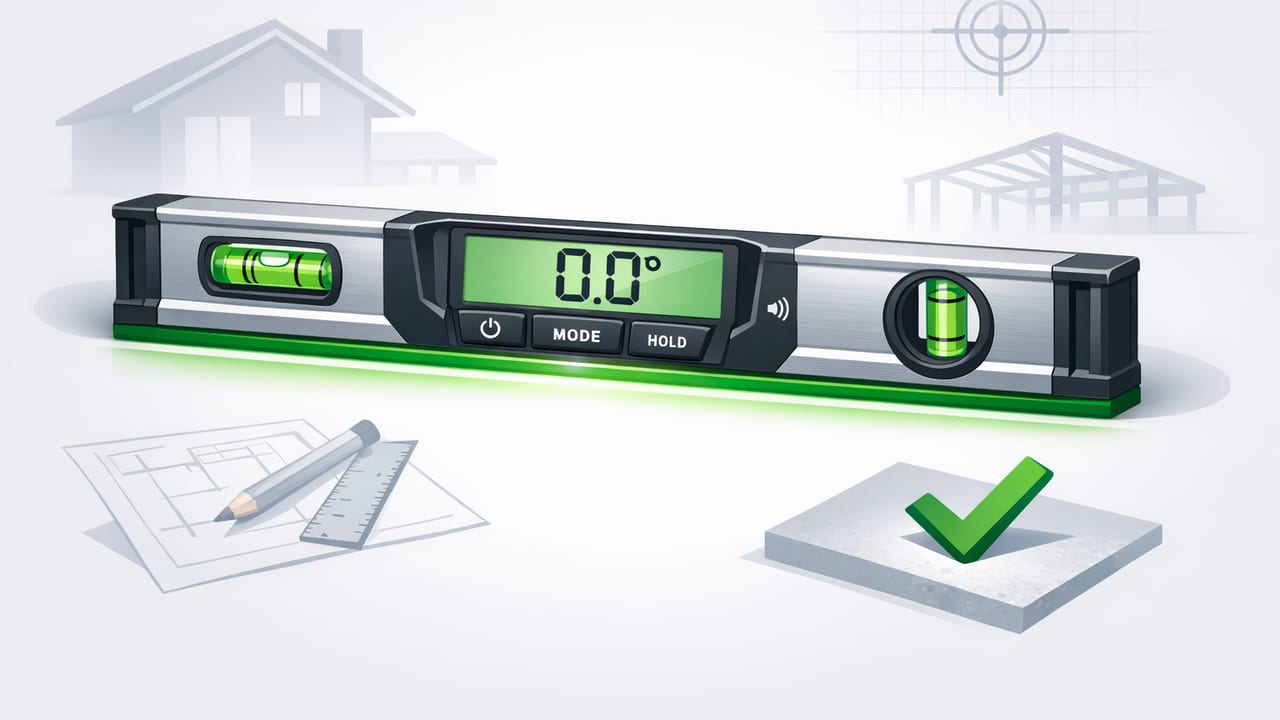
A digital spirit level turns your iPhone into a practical leveling tool for everyday DIY and professional tasks—checking if a shelf is straight, a post is plumb, or a surface is sloped for drainage. Unlike a traditional bubble vial, a digital level uses device sensors to compute angles and show a live readout (often in degrees, percent grade, or a visual “bubble” style).
This guide explains how a digital spirit level works, what “accuracy” really means in real-world jobs, and how to calibrate and use it confidently—especially when you’re working offline or on-site without Wi‑Fi.
What is a digital spirit level?
A digital spirit level is a leveling tool that reports an angle relative to gravity. In an iPhone app, the phone becomes the level body: you place it against a surface (or on top of it), and the app displays whether it’s level (0°), plumb (90°), or at a specified slope.
Most apps provide at least one of these views:
- Single-axis: measures tilt in one direction (left/right or up/down).
- Dual-axis: measures pitch and roll simultaneously—helpful for leveling across two directions (e.g., a tabletop).
- Angle readout: degrees (°), percent grade (%), or mm/m for certain trades.
How an iPhone digital spirit level works (sensor basics)
iPhones use a combination of motion sensors to estimate orientation relative to gravity. The key piece is the accelerometer, which detects acceleration including the constant acceleration from Earth’s gravity. Many devices also use a gyroscope to track rotational movement smoothly, reducing jitter.
At a simplified level, the app:
- Reads accelerometer values along the phone’s X/Y/Z axes.
- Estimates the direction of gravity relative to the phone.
- Calculates tilt angles from that gravity vector.
- Applies filtering to stabilize the display and reduce noise.
Key idea: A phone-based level measures orientation relative to gravity, not relative to the floor or the wall. If the surface you reference is warped, your reading may be “accurate” but still not what you intended.
Accuracy: what to expect (and what affects it)
People often ask whether a digital spirit level on a phone is “as accurate” as a physical level. The most useful answer is: it can be highly practical for many tasks, but accuracy depends on setup, calibration, and how you place the device.
Common factors that influence accuracy
- Calibration state: If the app isn’t calibrated (or you calibrated on an uneven reference), readings can be consistently off.
- Contact quality: A phone case, camera bump, or curved edge can prevent a flush fit and introduce tilt.
- Surface condition: Textured tile, grout lines, or chipped wood can change the contact points.
- Device movement: Handheld use adds micro-motions; resting the phone improves stability.
- Temperature and sensor drift: Usually minor, but rapid temperature changes can cause small drift in some devices.
Practical accuracy targets for DIY
For many home tasks, you don’t need laboratory precision. These are practical expectations:
- Hanging frames/shelves: within about 0.2–0.5° is typically more than adequate visually.
- Drainage slope checks: percent grade matters more than tiny fractional degrees.
- Cabinet installation: consistency across multiple checks is as important as absolute precision.
If your job requires certified measurement (e.g., certain construction QA workflows), use a calibrated physical instrument. Otherwise, a well-calibrated digital spirit level on iPhone can be a reliable everyday tool.
Digital vs. traditional spirit levels: a quick comparison
| Feature | Traditional bubble level | Digital spirit level (iPhone) |
|---|---|---|
| Readout | Visual bubble position | Degrees/grade + bubble UI |
| Dual-axis leveling | Often single-axis unless specialized | Common in apps |
| Repeatability | High if level is true and undamaged | High after calibration, stable placement |
| Edge/contact surface | Flat milled edges designed for contact | Depends on phone/case and surface |
| Best use | Rough framing, jobsite durability | Quick checks, tight spaces, DIY & light pro use |
How to calibrate a digital spirit level correctly
Calibration is the difference between “seems close” and “trustworthy.” The goal is to define what your app considers 0° on a reference surface.
Step-by-step calibration method (simple and effective)
- Choose a stable reference: A sturdy countertop, a thick shelf, or a flat workbench. Avoid soft surfaces (beds, couches).
- Remove bulky cases if needed: If your case rocks or hits camera bumps, consider removing it for calibration and measurement.
- Let the phone settle: Place the phone down and wait 2–3 seconds for the reading to stabilize.
- Calibrate at 0°: Use the app’s calibration feature to set this surface as level.
- Flip test for verification: Rotate the phone 180° on the same spot. A good calibration should show nearly the same reading (close to 0°) after the flip.
Why the flip test works: Any consistent offset should reverse sign when the device is flipped. If it doesn’t, your reference surface may not be flat, or the phone wasn’t placed consistently.
Troubleshooting calibration issues
- Reading changes when you touch the phone: You’re slightly pressing or twisting it. Try using a light touch or remove the case.
- It never stabilizes: Move away from vibration (washing machine, heavy footsteps on flexible floors) and let the phone rest longer.
- Different results on different surfaces: Some surfaces aren’t actually flat. Calibrate on the flattest, most reliable surface you can find.
How to use a digital spirit level for common DIY tasks
1) Leveling shelves and wall brackets
Use the phone on top of the shelf (or against a straightedge laid on it). A helpful approach is to do two checks:
- Before drilling: Mark your bracket holes after confirming the bracket line is level.
- After mounting: Re-check and adjust if hardware allows small tweaks.
Tip: If the shelf is too narrow for a stable phone placement, place a straight board on the shelf and set the phone on the board for a larger footprint.
2) Checking plumb on posts and door frames
For plumb, hold the phone against the vertical surface. If the app offers a plumb mode (90° reference), use it. Otherwise, look for 90° or 0° depending on how the interface is defined.
Best practice: Check the same post on two adjacent faces (front and side). A post can be plumb in one direction and leaning in the other.
3) Setting slope for drainage (decks, patios, shower floors)
Slope is where a digital readout shines. If your app supports percent grade, you can directly target a value (for example, 1–2% for certain drainage scenarios, depending on local standards and application). If it shows degrees, you can convert roughly:
- 1% ≈ 0.57°
- 2% ≈ 1.15°
To avoid confusion, measure slope over a straight reference (a long board or screed) rather than directly on uneven materials.
4) Aligning appliances and furniture
For washing machines, fridges, worktables, and desks, use dual-axis leveling if available. Check:
- Left-to-right tilt (roll)
- Front-to-back tilt (pitch)
Make one adjustment at a time and re-check; changing one foot can affect both axes.
Offline use: why it matters on job sites and outdoors
A leveling tool should work where you need it—basements, garages, cabins, new builds, or anywhere cellular service is spotty. A digital spirit level that functions fully offline is often more reliable in practice because you can open it instantly without waiting for network calls, logins, or subscriptions to validate.
Offline functionality also reduces distractions: you can keep your phone in airplane mode and still get stable readings, which is useful when you want to conserve battery or avoid interruptions.
Pro tips for more reliable readings
- Use a straightedge: A long, straight board improves contact and averages small surface imperfections.
- Avoid the camera bump rocking point: Place the phone so it rests on a flatter edge, or remove the case.
- Take multiple samples: Check the reading, lift the phone, set it down again in the same place, and compare. Consistent numbers build confidence.
- Watch for parallax in physical comparisons: If you’re comparing to a bubble level, read the bubble straight-on and ensure the level is clean.
- Calibrate occasionally: Especially after iOS updates, major temperature changes, or if the phone has been dropped.
Optional: a simple angle-to-grade conversion snippet
If your digital spirit level reports degrees but you need percent grade, the conversion is:
grade_percent = tan(angle_degrees * π / 180) * 100And if you have percent grade and want degrees:
angle_degrees = arctan(grade_percent / 100) * 180 / πThis is useful for drainage planning, ramp checks, or matching a specification that’s written in grade rather than degrees.
When a phone level is the right tool—and when it isn’t
A digital spirit level on iPhone is ideal for:
- Quick checks in tight spaces where a long level won’t fit
- Home improvement tasks (shelves, frames, appliances)
- Basic slope verification using a board or straightedge
- On-the-go use when you want a tool that’s always in your pocket
Consider a dedicated physical level (or a calibrated digital inclinometer) for:
- Rough framing and heavy jobsite abuse
- Situations requiring certified measurement traceability
- Long spans where a longer tool body is inherently more stable
Putting it all together
A well-set-up digital spirit level can be one of the most practical iOS measurement tools you’ll use. The key is treating it like a real instrument: calibrate on a trustworthy surface, verify with a flip test, and measure against a solid reference edge when possible.
If you prefer an iOS toolkit that keeps leveling alongside other offline measurement utilities (like ruler, compass, barometer, and more), an app such as Level Tool can simplify having everything in one place—without relying on connectivity.
