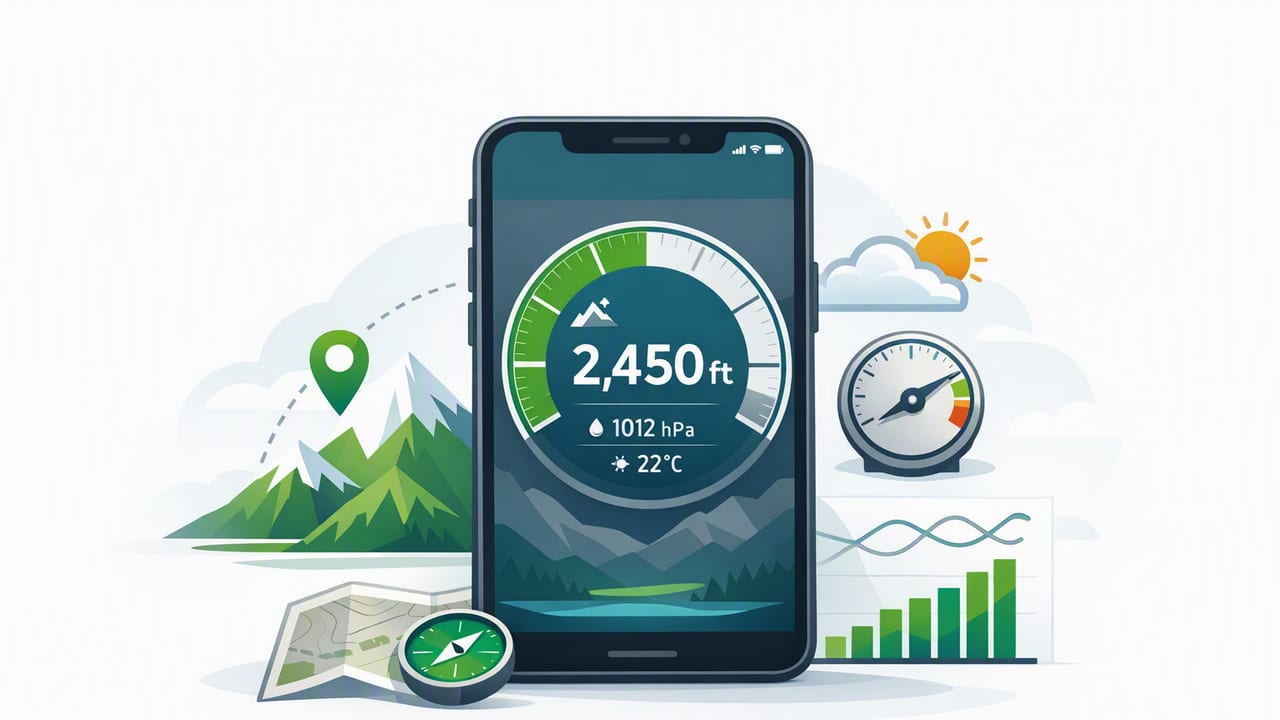
An altimeter barometer app can turn your iPhone into a practical field tool for estimating elevation, monitoring weather shifts, and validating pressure-related changes during outdoor trips or jobsite work. But to get reliable results, it helps to understand what your phone is measuring, what it’s estimating, and how to set up your readings correctly—especially when you’re offline.
This guide explains how an iPhone altimeter and barometer work, what “good accuracy” looks like, and how to use pressure trends for smarter decisions (from hiking to home projects).
What an Altimeter Barometer App Measures (and What It Doesn’t)
Most iPhones include sensors that can read barometric pressure (air pressure). Your phone can also estimate altitude (elevation) by using pressure readings and a reference model. A typical altimeter barometer app shows:
- Pressure (commonly in hPa, mbar, inHg, or mmHg)
- Estimated altitude (feet or meters)
- Pressure trend (rising/falling over time)
- Sometimes: sea-level pressure (pressure adjusted to sea level)
Important distinction:
- Barometer = direct sensor reading (pressure at your location).
- Altimeter = calculated estimate (altitude derived from pressure + assumptions).
That means pressure readings are often more “raw” and stable than altitude readings, which can shift if the weather changes.
How iPhone Altitude Estimation Works (Pressure → Elevation)
An altimeter barometer app typically uses a standard atmosphere formula to convert pressure into altitude. One common approximation is:
Lower pressure usually indicates higher altitude (or a storm system moving in).
Higher pressure usually indicates lower altitude (or improving weather).
The tricky part: pressure changes for two reasons—elevation changes and weather changes. If you climb a hill, pressure drops. If a weather front moves in, pressure also drops. Without a reference point, your phone can’t always tell which one caused the change.
Why “Calibrating” Matters
Some altimeter barometer apps let you set a known reference:
- Known elevation (e.g., trailhead sign, map point, building elevation)
- Known sea-level pressure (from a trusted local weather source)
When you provide a reference, the app can produce a more useful altitude estimate. Without it, altitude may drift as pressure changes through the day.
Accuracy: What’s Realistic for an Altimeter Barometer App?
Accuracy depends on your device sensors, environment, and setup. Here’s a practical expectation range for many situations:
| Use case | What to trust most | Typical accuracy expectation |
|---|---|---|
| Short hike with stable weather | Altitude changes (relative gain/loss) | Often good for tracking elevation gain; absolute altitude may be off |
| All-day outing with changing weather | Pressure trend + relative altitude | Altitude can drift noticeably if not calibrated |
| DIY/home tasks (checking pressure trend indoors) | Pressure trend | Stable indoors; sudden changes usually signal weather shifts or HVAC effects |
| Navigation backup (offline) | Pressure + compass + map knowledge | Helpful context; not a replacement for dedicated navigation tools |
Tip: Altitude change (how much you climbed) is often more reliable than altitude at a specific moment, especially if the weather is moving.
Offline Use: What Works Without Service?
A well-designed altimeter barometer app can keep working offline because the barometer sensor doesn’t require a network connection. However, certain features may depend on the internet:
- Works offline: pressure readings, pressure history (if stored locally), on-device calculations, basic altitude estimate.
- May require internet: fetching local sea-level pressure, syncing data, downloading maps, or matching GPS elevation baselines.
If you plan to rely on your app offline (backcountry, remote jobsite, travel), look for options to store readings on-device and avoid features that silently fail without connectivity.
Practical Ways to Use an Altimeter Barometer App
1) Hiking: Track Elevation Gain More Reliably
For hiking, many people want “How much did I climb?” rather than “What exact elevation am I at?” To make your data more consistent:
- Start at a known elevation (trailhead sign or topo map value).
- Let the phone acclimate for 2–3 minutes (avoid pockets right after leaving a warm car).
- Use relative gain/loss instead of obsessing over absolute elevation.
- Re-check at another known point (summit sign, pass elevation) to see drift.
If the app includes a chart, focus on the shape of the climb and the total gain. A slow drift from weather is less important than consistent ups and downs.
2) Weather Awareness: Pressure Trend as a Decision Tool
Barometric pressure trend can be a simple early warning system. While local geography matters, many users follow a basic rule of thumb:
- Rapidly falling pressure: increasing chance of deteriorating weather.
- Steadily rising pressure: improving or stable conditions.
- Flat pressure: often stable, but still watch wind and clouds.
To make trends meaningful, take readings in a consistent environment (e.g., outside at similar times, or indoors away from vents). Also note that large temperature swings and moving between indoors/outdoors can briefly affect readings.
3) Travel and High Elevation: Spot Acclimatization Context
Altitude data from an altimeter barometer app can help you keep track of how quickly you gain elevation during travel—useful context if you’re monitoring how you feel at higher elevations. It’s not a medical device, but it can help you answer: “Am I sleeping much higher tonight than last night?”
4) DIY and Home Improvement: Environmental Baselines
DIY users often overlook the barometer as a “home tool,” but it can be handy for baselining conditions:
- Log pressure changes during storms (useful for planning exterior paint, roof work, or concrete timing).
- Compare indoor vs outdoor pressure trend (paired with humidity/temperature tools, if you use them).
- Confirm that sudden pressure shifts align with weather rather than a sensor glitch.
Common Mistakes That Cause Bad Readings
- Assuming altitude is “GPS altitude”: Many apps show pressure-derived altitude, which behaves differently from GPS elevation.
- Ignoring weather drift: A storm front can change pressure enough to make altitude look wrong even when you’re standing still.
- Blocking sensor ports: Some cases or debris can reduce airflow to the barometer vent, slowing response.
- Comparing readings across devices without a reference: Two phones can disagree if they use different baselines.
- Reading immediately after temperature changes: Give the phone a moment to stabilize after moving from cold to warm environments.
Quick Pressure Unit Cheat Sheet
Apps may let you switch units. These approximate equivalences can help when comparing sources:
| Unit | Common context | Typical sea-level value |
|---|---|---|
| hPa (hectopascal) | Weather reports (metric) | ~1013 hPa |
| mbar (millibar) | Weather reports (legacy) | ~1013 mbar |
| inHg (inches of mercury) | US weather reports | ~29.92 inHg |
| mmHg (millimeters of mercury) | Scientific/medical contexts | ~760 mmHg |
Note: hPa and mbar are effectively equivalent for everyday use (1 hPa = 1 mbar).
Optional: A Simple Pressure-to-Altitude Calculation (for Nerds)
If you like understanding what’s happening under the hood, here’s a commonly used approximation for altitude based on pressure, assuming standard conditions:
// Pressure-altitude approximation (International Standard Atmosphere-ish)
// p0 = sea-level pressure in hPa (often 1013.25)
// p  = measured pressure in hPa
// Returns altitude in meters

double altitudeMeters(double p, double p0) {
  return 44330.0 * (1.0 - pow(p / p0, 0.1903));
}
This is why your choice of p0 (sea-level reference) matters. If local sea-level pressure is different from 1013.25 hPa, the altitude estimate can be off even if your sensor is perfect.
How to Choose a Good Altimeter Barometer App
When comparing options, focus on usability and reliability rather than flashy features. Useful criteria include:
- Offline functionality: pressure/altitude still display without service.
- Clear units and conversions: hPa, inHg, meters/feet.
- Trend visualization: a simple chart or history log.
- Calibration options: set known elevation or sea-level pressure.
- Sensor transparency: indicates whether altitude is barometric or GPS-based (or both).
If you also use your phone for DIY measurement, it can be convenient when the barometer lives alongside tools like a level, compass, or ruler—especially if everything works offline.
FAQ
Does an altimeter barometer app work on every iPhone?
Not always. Barometer support depends on the iPhone model. If your device lacks a barometric sensor, an app may rely on GPS or network data, which can reduce offline usefulness.
Why does my altitude change while I’m standing still?
Because altitude is derived from air pressure. If local pressure changes due to weather, your altitude estimate can drift even without movement.
Is a barometer useful indoors?
Yes for trends, but HVAC airflow and quick temperature changes can momentarily affect readings. For best results, take readings in a consistent spot away from vents.
Wrap-Up: Use Pressure Trends + Calibration for Better Results
The most practical way to use an altimeter barometer app is to treat pressure as the primary sensor reading and altitude as a helpful estimate that improves with calibration. For outdoor trips, pressure trends can provide early hints about changing weather, and relative elevation gain can be more meaningful than absolute altitude. For offline scenarios, prioritize apps that keep core functions available without connectivity.
Gentle note: If you prefer having barometer/altimeter readings alongside other offline measurement tools on iOS, apps like Level Tool bundle multiple sensor-based utilities in one place.
